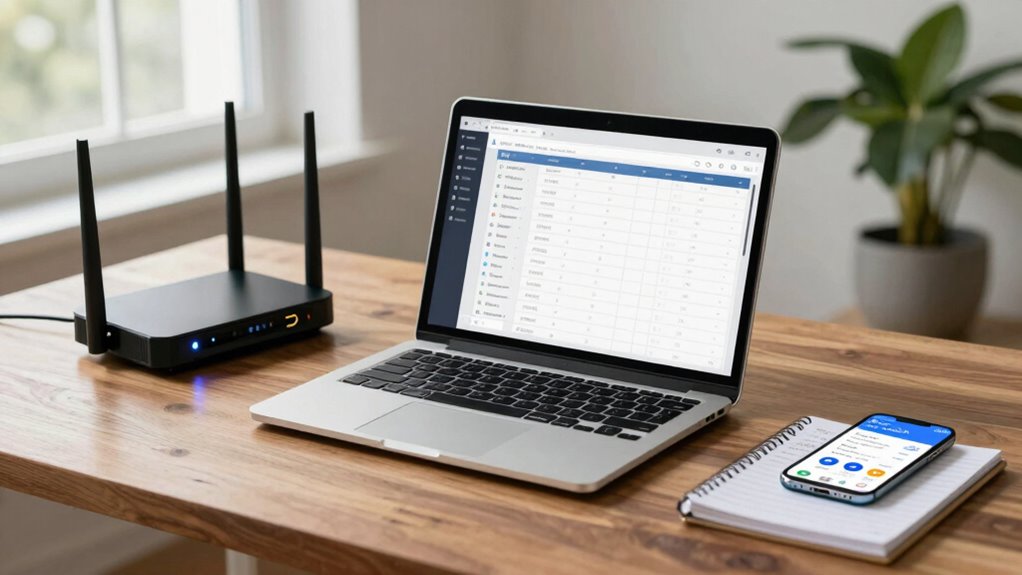

To secure your home network in just 10 minutes, start by changing your router’s default username and password. Enable WPA3 encryption for your Wi-Fi and schedule regular firmware updates. Identify all connected devices, changing their default passwords too. Create a guest network for visitors, and monitor for unusual activity to spot potential threats. This quick checklist will help enhance your network’s safety, and there’s more you can do to fully protect your home.
Key Takeaways
- Change the router’s default username and password to enhance security immediately.
- Enable WPA3 encryption for your Wi-Fi network to protect data transmission.
- Regularly update firmware for the router and all connected devices to patch vulnerabilities.
- Monitor network activity for unusual behavior and disconnect unfamiliar devices promptly.
- Use strong, unique passwords for all devices and regularly change them to reduce risks.

TP-Link AX1800 WiFi 6 Router (Archer AX21) – Dual Band Wireless Internet, Gigabit, Easy Mesh, Works with Alexa – A Certified for Humans Device, Free Expert Support
DUAL-BAND WIFI 6 ROUTER: Wi-Fi 6(802.11ax) technology achieves faster speeds, greater capacity and reduced network congestion compared to…
As an affiliate, we earn on qualifying purchases.
As an affiliate, we earn on qualifying purchases.
Immediate Steps to Secure Your Home Network
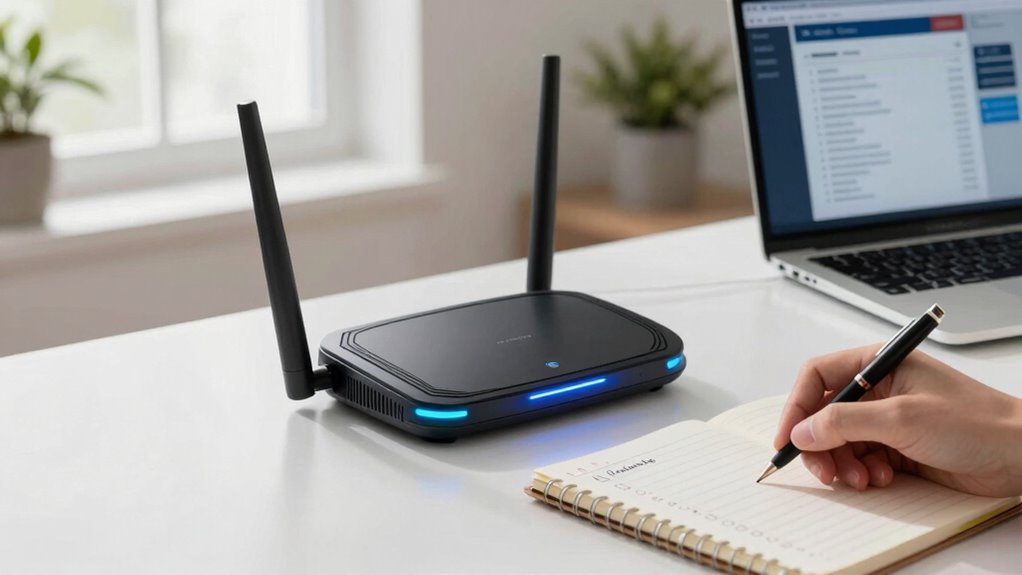
To guarantee your home network is secure, start by changing the default username and password on your router, since these are often easy targets for attackers. This is one of the fundamental network security basics everyone should follow. Next, enable WPA3 encryption, if available, to protect your Wi-Fi from unauthorized access. Regularly update your router’s firmware to patch any security holes that could expose home device vulnerabilities. Disable remote management features unless absolutely necessary, as these can provide additional entry points for hackers. Finally, consider setting up a guest network for visitors, keeping your primary network more secure. Additionally, monitoring network activity can help you detect unauthorized devices or suspicious behavior early on. By taking these immediate steps, you’ll greatly enhance your home network’s security and protect your devices from potential threats.

ASUS RT-AX1800S Dual Band WiFi 6 Extendable Router, Subscription-Free Network Security, Parental Control, Built-in VPN, AiMesh Compatible, Gaming & Streaming, Smart Home
New-Gen WiFi Standard – WiFi 6(802.11ax) standard supporting MU-MIMO and OFDMA technology for better efficiency and throughput.Antenna :…
As an affiliate, we earn on qualifying purchases.
As an affiliate, we earn on qualifying purchases.
Identify Your Network Devices
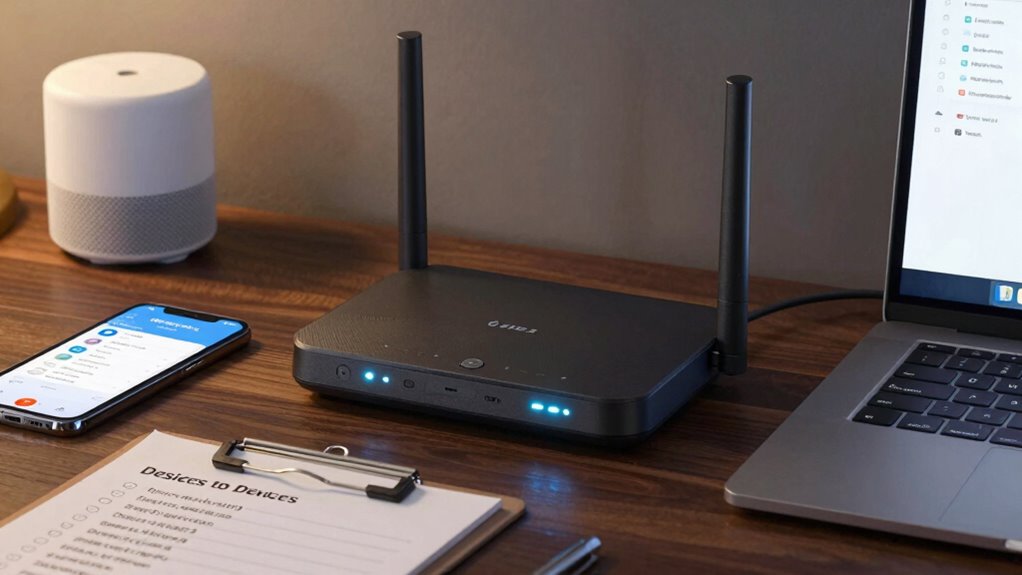
To secure your home network, start by listing all the devices connected to it. Identifying the types of devices helps you understand what’s on your network, and checking their settings guarantees they’re properly configured. By taking these steps, you’ll strengthen your overall network security.
List Connected Devices
One essential step in securing your home network is identifying all the devices connected to it. Start by conducting a thorough device inventory. This means listing every device, from computers and smartphones to smart TVs and security cameras. You can use your router’s interface to see connected devices, or download a network mapping tool for a more detailed view. Keep in mind that unauthorized devices can pose security risks, so be vigilant. Regularly update this inventory to reflect any changes, as new devices come and go. By maintaining an accurate list of connected devices, you’ll have better control over your network and can take appropriate security measures to protect your home.
Identify Device Types
Understanding the types of devices on your network is essential for effective security. In a smart home, you might have various device types, including smartphones, laptops, tablets, smart TVs, and IoT devices like smart speakers or cameras. Each type serves a different purpose and can pose unique security risks. Incorporating AI-powered security solutions can help detect unusual activity and protect your network proactively. Start by categorizing your devices based on their function—are they for communication, entertainment, or home automation? Knowing what’s connected helps you monitor their activity and identify potential vulnerabilities. Make a list of all device types in your home network, noting their manufacturers and models. This way, you can stay informed about updates and security patches. By identifying each device, you’re taking an important step towards fortifying your home network’s security.
Check Device Settings
Checking device settings is essential for maintaining your home network’s security. Start by identifying all devices connected to your network, including computers, smartphones, and smart home gadgets. Once you have a list, explore each device’s settings. Focus on device customization options that enhance security features, like changing default usernames and passwords. Enable firewalls and encryption settings, ensuring data remains secure during transmission. Regularly update firmware to protect against vulnerabilities. Don’t overlook the importance of disabling unused ports or services that could provide easy access to intruders. By routinely checking and adjusting these settings, you’ll create a robust defense against potential threats, keeping your home network safe and sound.

Cable Matters 7-in-1 Network Tool Kit with RJ45 Ethernet Crimping Tool, Punch Down Device, Punch Down Stand, Cable Tester, RJ45 Connectors & Boots, and Wire Strippers – Carrying Case Included
Take command of your network with the Cable Matters Network Toolkit with Carrying Case; 7-in-1 Ethernet cable tool…
As an affiliate, we earn on qualifying purchases.
As an affiliate, we earn on qualifying purchases.
Change Default Passwords and SSIDs
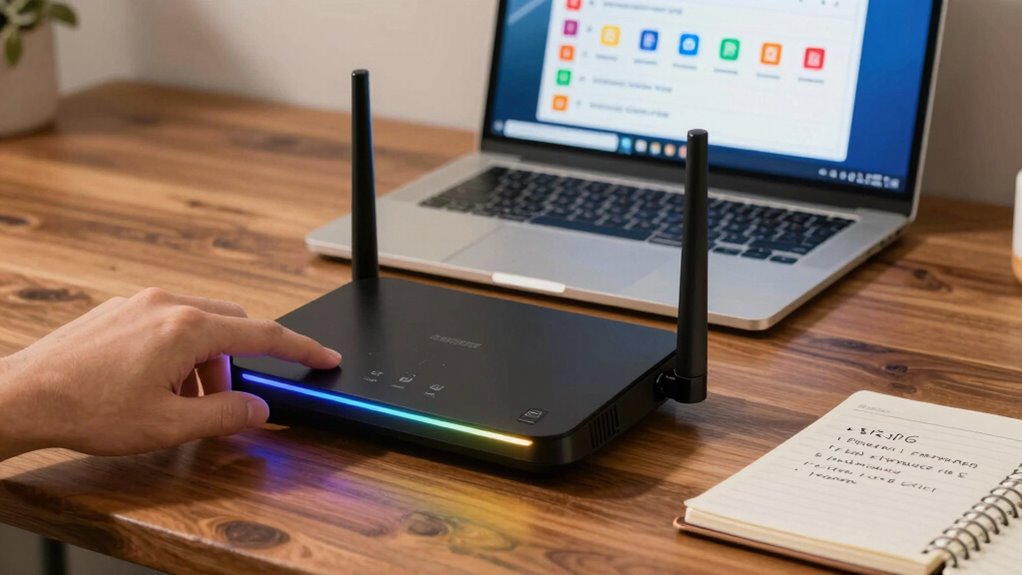
Changing default passwords and SSIDs is essential for protecting your home network. Default settings can leave you vulnerable to attacks, so it’s important to create unique credentials. Let’s explore some tips to make these changes safely and effectively.
Importance Of Unique Credentials
While it might seem convenient to stick with default passwords and SSIDs, doing so can leave your home network vulnerable to unauthorized access. Instead, adopt unique password strategies that strengthen your security. Changing these settings not only protects you but also enhances your overall credential management.
| Default Setting | Risk Level |
|---|---|
| Default SSID | High |
| Default Password | High |
| Unique SSID | Low |
| Unique Password | Low |
| Regular Changes | Very Low |
Risks Of Default Settings
Many people underestimate the risks associated with default settings on their home networks, but these can create significant vulnerabilities. Leaving default passwords and SSIDs unchanged exposes you to various threats, making it easy for hackers to access your network. Here are some key concerns to contemplate:
- Default password risks: Many routers come with easily guessable passwords, allowing unauthorized access.
- Unsecured devices: Smart devices often use default settings, making them prime targets for cybercriminals.
- Network breaches: An unsecured network can lead to data theft and compromised personal information.
- Malware infiltration: Hackers can introduce malware through unsecured devices, jeopardizing your entire network.
- Understanding network security considerations can help you better protect your home environment.
Taking action to change these settings is essential for safeguarding your home network.
Tips For Safe Changes
To enhance your home network security, it’s essential to change default passwords and SSIDs immediately after setting up your devices. Default passwords are easy targets for hackers, so create strong, unique passwords that include letters, numbers, and symbols. Along with changing your SSID, choose a name that doesn’t reveal personal information or device brands. This helps prevent attackers from guessing your network’s vulnerabilities.
Once you’ve made these changes, verify your configurations are secure by regularly updating your passwords and monitoring your network for unusual activity. Consider using network monitoring tools that alert you to unauthorized access attempts. By taking these simple steps, you’ll greatly improve your home network’s security and enjoy a safer online experience.

WiFi Door Alarm System, Wireless DIY Smart Home Security System, with Phone APP Alert, 8 Pieces-Kit (Alarm Siren, Door Window Sensor, Remote), Work with Alexa, for House, Apartment, by tolviviov
WIFI Network: WIFI connection, Only works on 2.4GHz WiFi network, does NOT support 5GHz WiFi networks.
As an affiliate, we earn on qualifying purchases.
As an affiliate, we earn on qualifying purchases.
Enable WPA3 Encryption for Wi-Fi
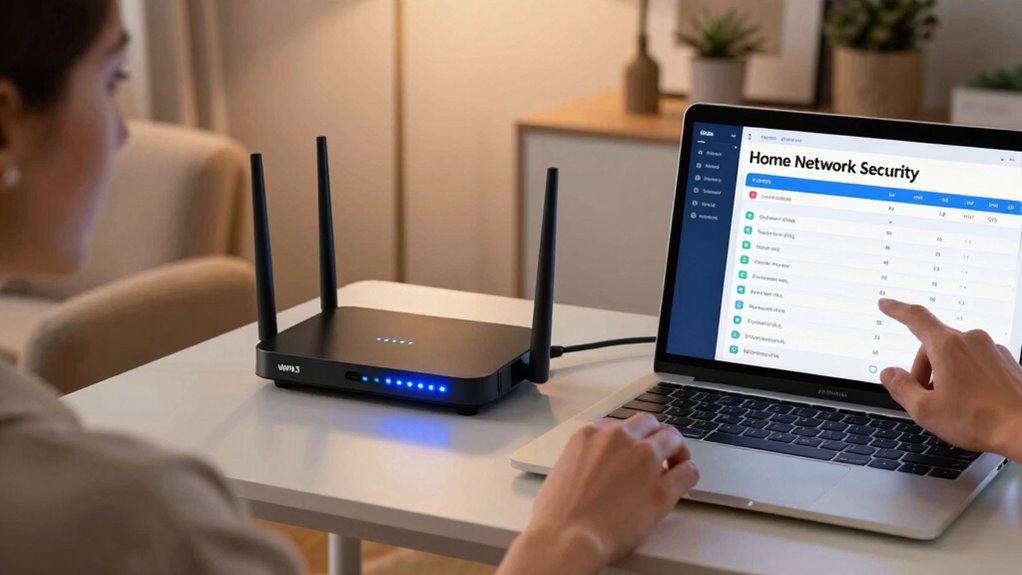
As you set up your home network, enabling WPA3 encryption for your Wi-Fi is essential for enhancing security. WPA3 offers several benefits that protect your data and improve your overall online experience. Make sure your devices are compatible with WPA3, as this newer standard provides stronger security than its predecessors.
Consider these key WPA3 benefits:
- Improved encryption strength, making it harder for hackers to access your network
- Enhanced protection against brute-force attacks
- Simplified device onboarding with Wi-Fi Easy Connect
- Better security for public Wi-Fi connections
Keep Your Router’s Firmware Updated
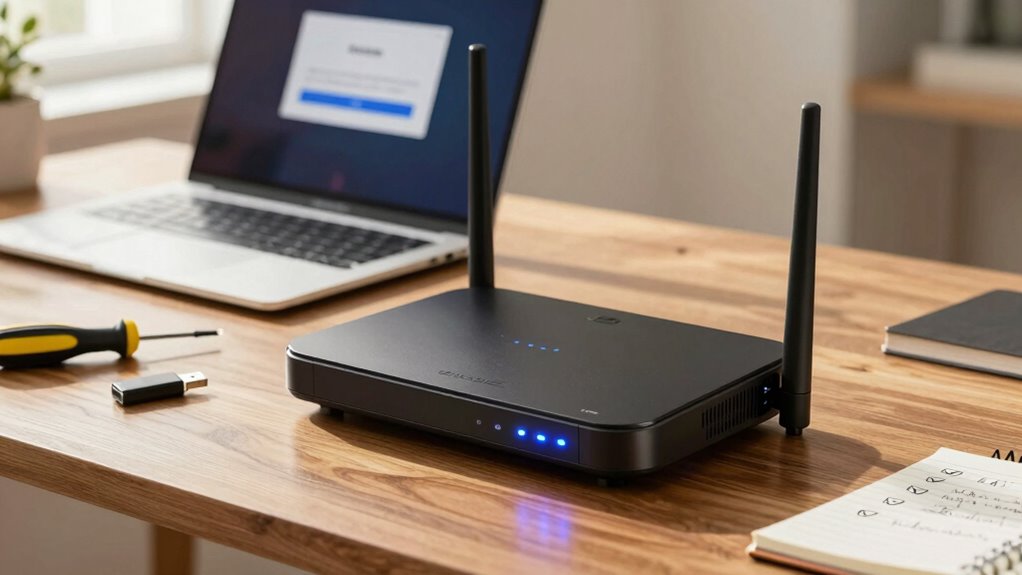
Even with WPA3 encryption in place, keeping your router’s firmware updated is essential for maintaining a secure home network. Firmware updates often include critical security patches that fix vulnerabilities hackers might exploit. By regularly checking for updates from your router’s manufacturer, you enhance your router security and help protect your connected devices. Most routers allow you to enable automatic updates, ensuring you’re always protected without manual intervention. Set a reminder to check for updates if your router doesn’t have this feature. Remember, outdated firmware can leave your network exposed, so take action to stay ahead of potential threats. Prioritizing these updates is a simple yet effective step toward safeguarding your home network.
Create a Guest Network for Visitors
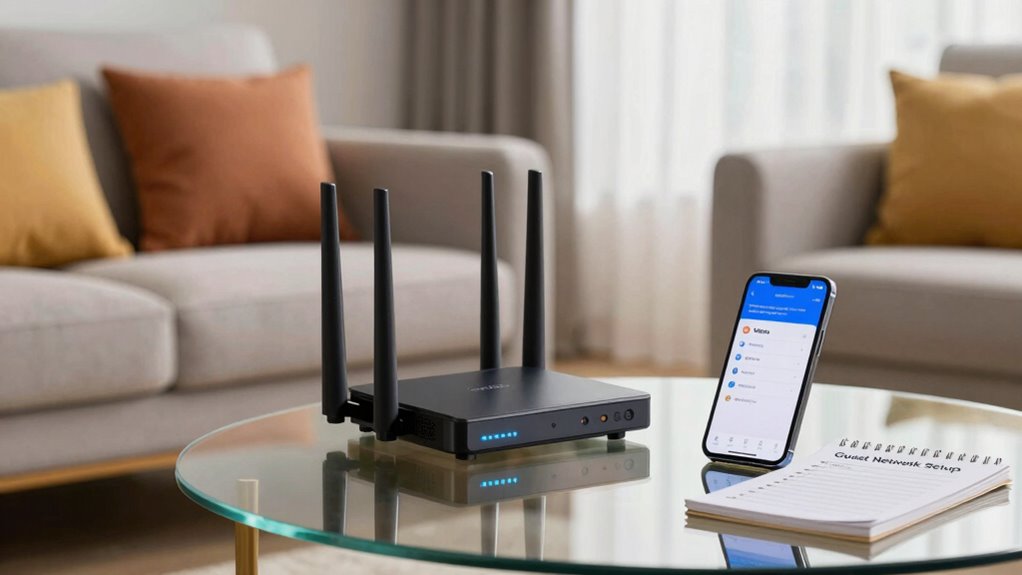
Why risk your main network’s security when creating a guest network for visitors is so easy? Setting up a guest network provides essential network isolation, keeping your personal devices safe from potential threats. Plus, it offers several guest network benefits that enhance your visitors’ experience while protecting your data.
Here are some key advantages:
- Enhanced Security: Limits access to your main devices.
- Better Privacy: Keeps your personal information secure.
- Controlled Access: Set time limits or bandwidth restrictions.
- Easy Setup: Most modern routers allow for quick configuration.
- Reduced Vulnerability: Properly configured guest networks help prevent network breaches that can compromise your entire home system.
Watch for Unusual Network Activity

Creating a guest network is a smart step for enhancing your home network’s security, but it doesn’t stop there. You need to actively watch for unusual network activity. Using network monitoring tools can help you identify any strange behavior on your network. Check for unusual traffic patterns that may indicate unauthorized access or devices connected without your knowledge. Regularly review your network logs, and set alerts for any anomalies. If you notice devices you don’t recognize or traffic spikes at odd hours, take action immediately. Disconnect unfamiliar devices and change your Wi-Fi password to secure your network. Staying vigilant and proactive about monitoring your network can greatly reduce your risk of security breaches. Implementing network security best practices is essential for maintaining ongoing protection.
Frequently Asked Questions
How Can I Find My Router’s IP Address?
To find your router’s IP address, you can check your network settings. On a Windows device, open Command Prompt and type “ipconfig”; look for the “Default Gateway.” For Mac, go to System Preferences, then Network, and select your active connection. The router’s IP will be listed there. Once you have it, you can use it to access the router login page for configuration. Make sure you’re connected to the network first!
What Is the Difference Between WPA2 and WPA3?
WPA2 has vulnerabilities that can leave your network exposed, while WPA3 offers advantages like enhanced security and better protection against brute-force attacks. With WPA2, you’re limited to a pre-shared key, but WPA3 introduces individualized data encryption for each device. If you want stronger security, upgrading to WPA3 is a smart move. It not only secures your connection but also makes it harder for hackers to compromise your network. Choose wisely for your home network!
How Often Should I Update My Router’s Firmware?
You should update your router’s firmware at least every few months, or whenever your manufacturer releases a new version. Router updates often include important security patches that protect your network from vulnerabilities. If you notice any unusual activity or performance issues, check for updates immediately. Keeping your router firmware current guarantees your devices stay secure and your network functions effectively, so don’t neglect this essential maintenance step!
Can I Use a VPN With My Home Network?
Yes, you can use a VPN with your home network, just like adding an extra layer of security to a locked door. The benefits include enhanced privacy and protection from hackers, allowing you to browse the web more securely. However, there are drawbacks, like potential slower internet speeds and some websites blocking VPN access. Weighing these factors helps you decide if using a VPN suits your needs.
What Devices Can I Connect to a Guest Network?
You can connect various guest network devices, such as smartphones, tablets, laptops, and smart TVs. These devices help your guests access the internet without compromising your main network’s security. Make sure to set up secure guest access by creating a separate Wi-Fi password and limiting bandwidth or access to sensitive files. This way, you keep your home network safe while allowing guests to enjoy internet connectivity during their visit.
Conclusion
By taking these quick steps, you’re not just locking the door to your home; you’re building a fortress around your digital life. Just as a gardener nurtures their plants, cultivating security guarantees your network thrives without intrusions. Remember, each action you take is a brick in the wall, shielding your privacy and peace of mind. So, stay vigilant and keep tending to your online garden, because a secure network is the foundation of a flourishing digital life.