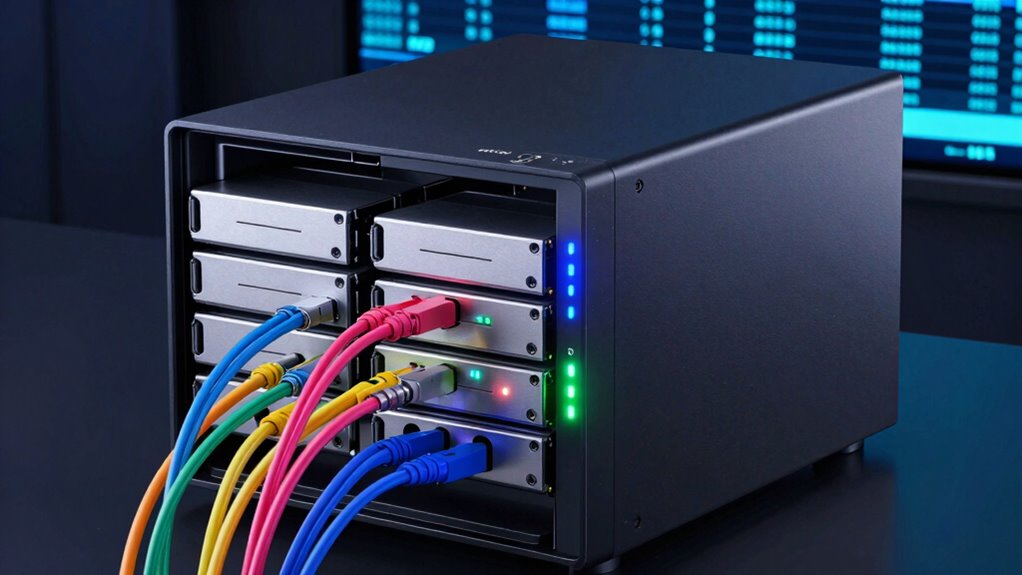

NAS drive bays refer to how many hard drives or SSDs you can install, affecting your total storage and future expansion options. RAID levels are configurations that organize those drives to balance performance and data protection—like RAID 0 for speed or RAID 1 for redundancy. Choosing the right combination helps safeguard your data and guarantee scalability. Keep exploring to find out how these choices can perfectly suit your needs.

Get the little things that make your day delivered free with Prime
- Fast, free delivery on millions of items
- Prime Video, Amazon Music and more included
- Member-only deals all year
Key Takeaways
- Drive bays determine how many hard drives or SSDs a NAS can hold, affecting storage capacity and upgrade options.
- RAID levels (e.g., 0, 1, 5, 6) organize multiple drives to enhance speed, redundancy, or both, depending on needs.
- RAID 0 improves performance but offers no data protection, while RAID 1, 5, and 6 provide data redundancy for safety.
- Data redundancy strategies like RAID protect against drive failures, ensuring data remains accessible.
- Planning drive bays and RAID levels together supports future scalability, performance, and data security.
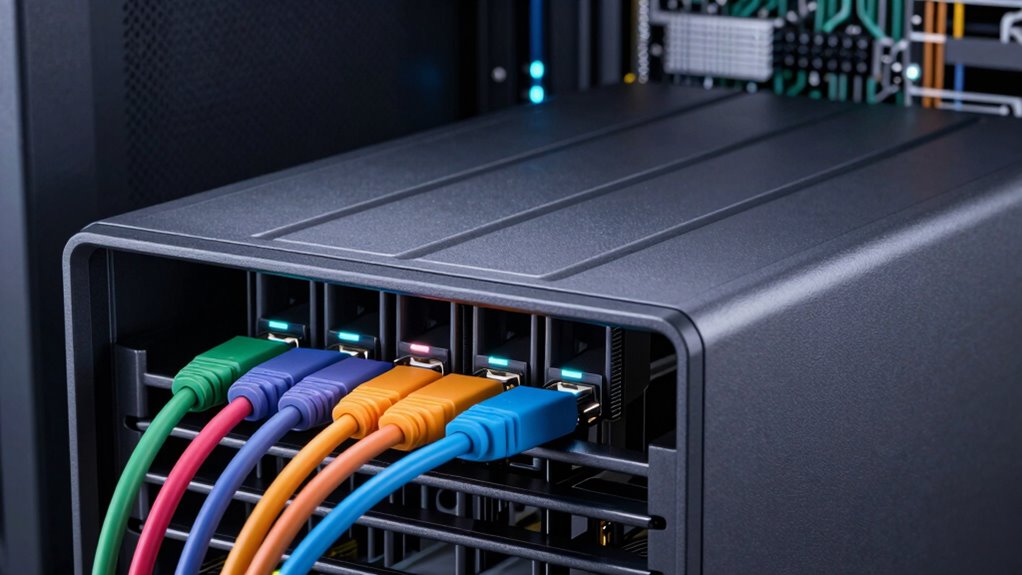
When choosing a NAS (Network-Attached Storage) device, understanding its drive bays and RAID levels is essential for optimizing storage performance and data protection. Drive bays determine how many hard drives or SSDs you can install, directly impacting your storage capacity and flexibility. More bays mean you can expand your storage over time or set up different configurations for redundancy or speed. A NAS with multiple bays allows you to implement various RAID levels, which are critical for establishing data redundancy and improving network configuration. Data redundancy ensures your data remains safe even if one drive fails, giving you peace of mind and reducing the risk of data loss. Your choice of RAID level influences how drives work together, balancing performance, redundancy, and capacity.
Different RAID levels serve different needs. For example, RAID 0 spreads data across two or more drives to boost speed but offers no data redundancy—if one drive fails, you lose everything. In contrast, RAID 1 mirrors data on two drives, providing excellent data redundancy; if one drive fails, the other keeps your data safe. RAID 5 and RAID 6 incorporate parity, allowing for data recovery even if one or two drives fail, respectively. These setups are ideal for safeguarding large amounts of data without sacrificing too much storage capacity. When configuring your NAS, you must consider how your network is set up. Proper network configuration guarantees smooth data flow and reliable access to your storage, especially when multiple users or devices need to connect simultaneously. The way you connect your NAS—wired Ethernet, Wi-Fi, or a combination—affects transfer speeds and network stability. Understanding RAID configurations can help you choose the most suitable level for your specific needs.
Additionally, understanding drive bay configurations can assist in planning for future upgrades and expansions, ensuring your setup remains scalable as your storage requirements grow. Choosing the right drive bays and RAID level isn’t just about capacity; it’s about creating a reliable, efficient network environment. More bays give you options for expanding or customizing your setup, while RAID levels help you balance speed and data protection. If data redundancy is your priority, RAID configurations like RAID 1, 5, or 6 will serve you best. But remember, the network configuration also plays an important role in how well your NAS performs and how secure your data remains during transfers. Understanding drive bays and RAID levels is crucial for designing a storage solution that meets both current and future demands. As you plan your setup, consider both your current needs and future growth, making sure your NAS can handle increased storage demands while keeping your data safe. Whether you’re setting up a small home office or a larger enterprise environment, understanding these core concepts will help you make informed choices for a dependable, high-performing storage solution.
Products Worth Considering

Dreame L50 Ultra Robot Vacuum and Mop

Sonos Era 100 SL Compact Microphone-Free Speaker, Black

Samsung 42-Inch Class OLED S90F 4K Smart TV (2025)
As an affiliate, we earn on qualifying purchases.
Frequently Asked Questions
Can I Upgrade NAS Drive Bays Later?
Yes, you can upgrade NAS drive bays later, but it depends on the model’s drive bay compatibility and expansion options. Some NAS devices support additional bays through expansion units or modular designs, allowing you to grow storage capacity. Before upgrading, check if your existing NAS has available slots or expansion options, and verify new drives are compatible with your system to avoid compatibility issues.
Do RAID Levels Affect NAS Power Consumption?
Yes, RAID levels can substantially impact your NAS’s power consumption. Higher RAID levels often require more drives and processing power, which increases energy use, while lower levels may be more energy-efficient. Think of it like fueling a sports car versus a city car — it’s all about balance. Your choice affects energy efficiency and hardware compatibility, so pick wisely to optimize performance without draining your power bill.
Are All RAID Levels Suitable for Backups?
Not all RAID levels are suitable for backups. RAID mainly offers data redundancy and improved performance, but some configurations, like RAID 0, lack redundancy, risking data loss. For reliable backups, you need RAID levels like 1, 5, or 6, which balance data redundancy with hardware compatibility. Make certain your NAS supports your chosen RAID level to maximize data protection and recovery options effectively.
How Do Drive Bays Impact NAS Performance?
Drive bay compatibility directly impacts your NAS performance because more bays enable higher capacity and better expansion options, allowing you to add drives as needed. If your NAS has limited bays, it restricts expansion and may bottleneck data transfer speeds. Choosing a NAS with suitable drive bay capacity guarantees peak performance, flexibility, and future-proofing, especially if you plan to upgrade or increase storage. More bays generally improve overall system efficiency and scalability.
Can RAID Levels Protect Against Malware?
RAID levels mainly protect against hardware failure, not malware. To defend against malware, you should use data encryption and maintain malware resilience through regular backups, updates, and antivirus scans. While RAID can help prevent data loss from disk failure, it doesn’t stop malicious software from corrupting or deleting your files. Combining RAID with strong security practices guarantees better overall protection for your data against both hardware issues and malware threats.
Conclusion
Understanding NAS drive bays and RAID levels helps you make smarter storage choices, whether you’re setting up a home office or running a data center. Think of it like assembling your own Starship Enterprise—each component, from drive bays to RAID configurations, plays a crucial role in performance and data protection. So, don’t just be a tech tourist—be the captain of your data universe. With this knowledge, you’re ready to navigate storage with confidence, no app required.