
If your Wi-Fi is slow, you might notice buffering during streaming, sluggish browsing, or frequent disconnections. Check your internet speed with tools like Ookla or Fast.com to measure performance. Common issues include network congestion, outdated equipment, and physical obstructions. Positioning your router better or updating its firmware can help. If these tips don’t resolve your problems, there are more expert strategies to explore that can optimize your connection.

Get the little things that make your day delivered free with Prime
- Fast, free delivery on millions of items
- Prime Video, Amazon Music and more included
- Member-only deals all year
Key Takeaways
- Check for network congestion by seeing how many devices are using the internet simultaneously, as this can slow down your connection.
- Use reliable speed test tools like Ookla or Fast.com to measure your actual internet speed against your plan specifications.
- Identify physical obstructions, such as walls, that can weaken your Wi-Fi signal, and reposition your router for better coverage.
- Ensure your router firmware is up-to-date and consider upgrading to newer technology if your router is outdated.
- Look for interference from other electronic devices and change Wi-Fi channels to reduce congestion and improve performance.
As an affiliate, we earn on qualifying purchases.
Common Signs Your Wi-Fi Is Slow

Have you ever noticed your favorite streaming show buffering at the worst possible moment? Those annoying buffering issues often signal that your Wi-Fi is slow. You might also experience slow browsing while trying to scroll through social media or load websites. If pages take ages to load, it’s a clear sign that your connection isn’t up to par. Another telltale sign is frequent disconnections; if your device keeps dropping off the Wi-Fi, it’s frustrating and indicates an underlying issue. You might find that downloading files takes much longer than expected, too. If you’re facing these problems, it’s time to investigate your Wi-Fi speed and consider potential fixes to get back to seamless streaming and browsing.
As an affiliate, we earn on qualifying purchases.
How to Check Your Internet Speed
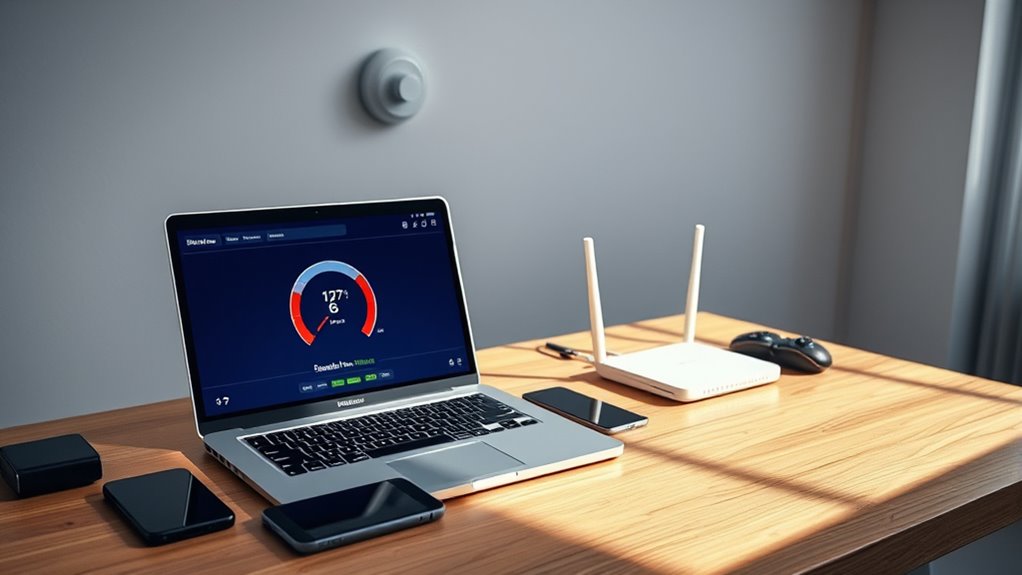
Experiencing slow Wi-Fi can be frustrating, but before you start troubleshooting, it’s important to know just how slow your connection really is. You can easily check your internet speed by following these steps:
Understanding your internet speed is crucial before troubleshooting slow Wi-Fi issues.
- Choose a speed test tool: Use a reliable service like Ookla or Fast.com to get accurate bandwidth measurements.
- Connect directly: For the best results, connect your device directly to the router using an Ethernet cable. This eliminates factors that may affect Wi-Fi performance.
- Run the speed test: Start the test and note your download and upload speeds. Compare these numbers to your internet plan’s specifications to see if you’re getting the service you pay for.
Knowing your speeds helps you identify if there’s an issue worth troubleshooting.
As an affiliate, we earn on qualifying purchases.
What Causes Slow Wi-Fi Connections?

When your Wi-Fi connection is slow, several factors could be at play, impacting your online experience. One major issue is network congestion. If multiple devices are connected and using the internet simultaneously, they can compete for bandwidth, causing slower speeds. This is especially common in households with heavy internet usage, like streaming or gaming. Bandwidth limitations imposed by your Internet Service Provider (ISP) can also contribute to slow connections. If your plan offers limited bandwidth, you might notice sluggish performance during peak hours. Additionally, physical obstructions like walls or interference from other electronic devices can weaken your signal, further exacerbating the problem. Identifying these causes can help you pinpoint solutions to improve your Wi-Fi speed.
As an affiliate, we earn on qualifying purchases.
Common Equipment Problems Affecting Wi-Fi Speed
If your Wi-Fi feels sluggish, it might be due to some common equipment issues. You could be using an outdated router, experiencing interference from other devices, or have your router placed in an inconvenient spot. Each of these factors can considerably impact your connection speed, so let’s explore them further. Additionally, outdated network equipment can lack the latest features that optimize performance.
Outdated Router Technology
Outdated router technology can greatly hinder your Wi-Fi speed, especially as internet demands grow. To improve your connection, consider these router upgrades based on technology advancements:
- Wi-Fi Standards: If your router supports outdated standards like 802.11n, upgrading to 802.11ac or 802.11ax can considerably boost your speeds.
- Dual-Band vs. Single-Band: Switching to a dual-band router allows you to utilize both 2.4 GHz and 5 GHz bands, reducing congestion and improving performance.
- Firmware Updates: Regularly check for firmware updates to guarantee your router operates efficiently and securely.
Interference From Other Devices
Even with an updated router, your Wi-Fi speed can still suffer due to interference from other devices. Common culprits include microwaves, cordless phones, and Bluetooth devices, which can create device interference and signal overlap. These disruptions can slow down your connection, making it frustrating to browse or stream.
Here’s a quick reference to understand potential interference sources:
| Device Type | Interference Level |
|---|---|
| Microwaves | High |
| Cordless Phones | Medium |
| Bluetooth Devices | Medium |
| Baby Monitors | Low |
| Wireless Cameras | Low |
Identifying and minimizing these sources can greatly improve your Wi-Fi performance, allowing you to enjoy a smoother online experience.
Improper Router Placement
One of the most common reasons for slow Wi-Fi is improper router placement. If your router isn’t positioned well, it can severely limit your signal range. Here are three tips to assist you optimize your router’s location:
- Height Matters: Place your router on a high shelf to maximize its coverage area. Higher placement helps the signal travel further.
- Central Location: Position your router in the center of your home to guarantee even coverage. Avoid corners and walls that can block signals.
- Avoid Obstructions: Keep your router away from metal objects and electronic devices that can interfere with its performance.
How Neighboring Networks Can Slow Down Your Wi-Fi
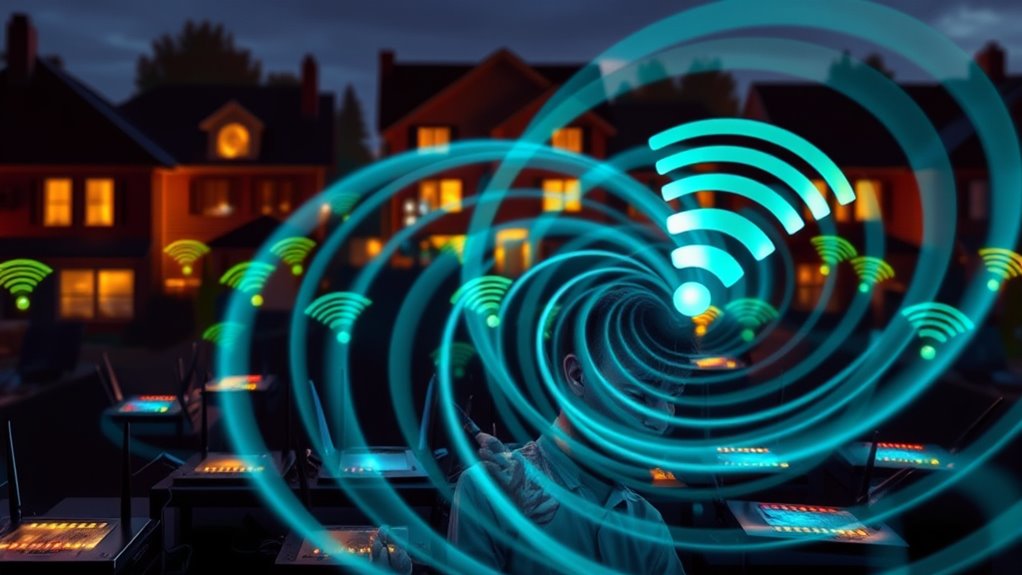
When multiple Wi-Fi networks crowd the airwaves in your neighborhood, it can greatly slow down your connection. This neighboring interference creates competition for bandwidth, leading to frustratingly slow speeds. If your router and a neighbor’s network operate on the same channel, you’ll experience signal overlap, causing further degradation in performance. You may notice dropouts or lag when streaming or gaming, especially during peak usage times when many devices are online. To check if neighboring networks are affecting your Wi-Fi, use a Wi-Fi analyzer app to identify crowded channels. If you find interference, you might need to change your router’s channel or upgrade to a dual-band router that operates on both 2.4 GHz and 5 GHz bands to alleviate the issue.
Wi-Fi Optimization Tips
To boost your Wi-Fi performance, consider implementing a few simple optimization tips that can make a significant difference. Here are three essential strategies:
To enhance your Wi-Fi performance, try these straightforward optimization tips for a noticeable improvement.
- Change Wi-Fi Channels: If you’re in a crowded area, switch to less congested Wi-Fi channels. Use apps to identify the best channel for your network.
- Enable Bandwidth Management: Prioritize your devices or applications that need the most bandwidth during peak usage times. This helps to guarantee your critical tasks run smoothly.
- Position Your Router Wisely: Place your router in a central location, away from walls and obstructions, to enhance coverage and signal strength throughout your home.
When to Call for Professional Help
Are you struggling with persistent Wi-Fi issues despite trying various optimization tips? It might be time to consult a professional. Look for signs of malfunction like frequent disconnections, notably slow speeds that don’t improve, or complete network outages. If you’ve reset your router, updated firmware, and adjusted settings with no luck, don’t hesitate to seek help. Professionals can diagnose underlying problems that you might miss, such as hardware failures or interference from other devices. They can also recommend better equipment tailored to your needs. Remember, sometimes it’s more efficient to let an expert handle complex issues rather than spending hours troubleshooting on your own. Trust your instincts; if it feels beyond your expertise, call for help!
Frequently Asked Questions
Can My Wi-Fi Speed Affect Gaming Performance?
Yes, your Wi-Fi speed can definitely affect gaming performance. If you’ve got a slow connection, you might experience higher ping rates and latency issues, which can lead to lag and a frustrating gaming experience. When your Wi-Fi isn’t fast enough, it struggles to keep up with real-time data, impacting your responsiveness in games. To improve performance, consider upgrading your router or optimizing your network settings for a smoother gaming experience.
Will Using a VPN Slow Down My Wi-Fi?
Yes, using a VPN can slow down your Wi-Fi. When you connect to a VPN, the encryption process adds extra data that your network needs to handle, which can reduce your speed. Additionally, if your Internet Service Provider (ISP) engages in throttling, a VPN might help by masking your activity, but it can also lead to slower speeds due to the extra routing. Balancing speed and privacy is key when using a VPN.
How Does the Number of Connected Devices Impact Speed?
Imagine trying to fill a small cup with a fire hose—too many connected devices can overwhelm your Wi-Fi. When you increase device density, each device gets less bandwidth allocation, leading to slower speeds. So, if your family’s streaming, gaming, and browsing all at once, you’ll notice a dip in performance. Keeping track of how many devices are active can help you manage your connection better and guarantee a smoother online experience.
Can Weather Conditions Affect My Wi-Fi Signal?
Yes, weather conditions can affect your Wi-Fi signal. Heavy rain can cause interference, as water droplets can absorb and scatter Wi-Fi signals. Likewise, high humidity levels can impact signal strength by creating additional obstacles for the waves to travel through. If you notice your internet slowing down during rainy or humid weather, it might be due to these environmental factors. Keeping your router positioned ideally can help mitigate some of these effects.
Is My Wi-Fi Speed Affected by My Computer’s Age?
Yes, your Wi-Fi speed can be affected by your computer’s age. As hardware limitations increase with older devices, you might notice slower performance. Coincidentally, if you’re not regularly installing software updates, that can compound the problem. Newer software is optimized for modern hardware, enhancing speed and efficiency. So, if you’ve got an old computer, consider upgrading your hardware or keeping your software up-to-date to improve your Wi-Fi experience.
Conclusion
In the grand scheme of things, a slow Wi-Fi connection can feel like a pesky fly buzzing around your head. But don’t let it drive you up the wall! By following the troubleshooting tips we’ve discussed, you can transform your internet experience from sluggish to swift. If all else fails, reaching out to a professional can be your golden ticket to a seamless connection. So, wave goodbye to those frustrating loading screens and say hello to smooth surfing!
Fall Picks
fall essentials
As an affiliate, we earn on qualifying purchases.