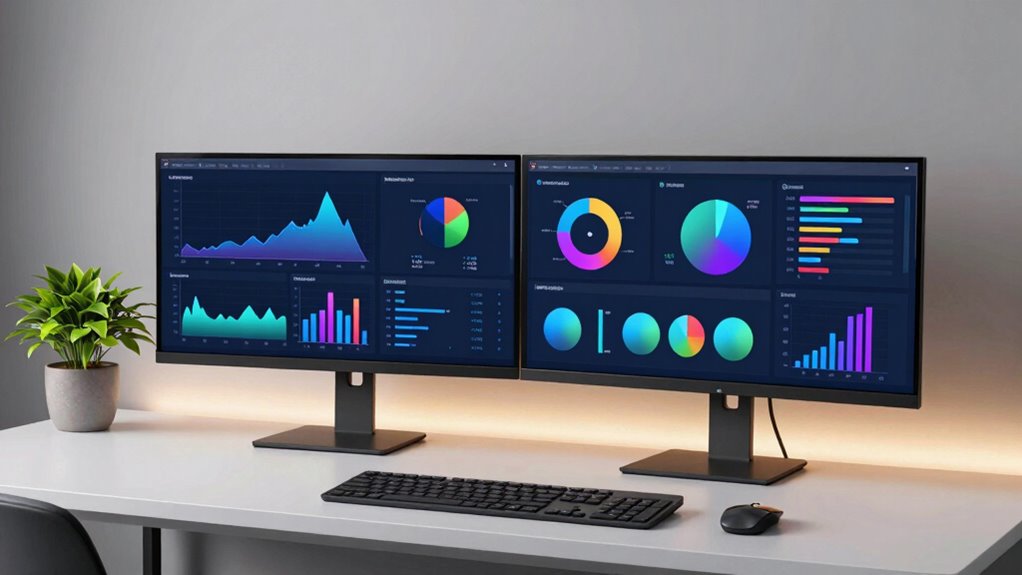

To use a second monitor smartly, position it at eye level and about an arm’s length away to stay comfortable. Dedicate one screen for your main tasks and the other for references or communication, reducing clutter and task switching. Keep your workspace organized with shortcuts and proper window management. Regularly adjust your setup for comfort and incorporate ergonomic principles. Exploring these tips further can help you optimize your workspace and boost your productivity.
Key Takeaways
- Dedicate the primary monitor for main tasks and use the second for references or communication tools.
- Position both monitors at eye level and an appropriate distance to reduce strain.
- Use workspace management tools like virtual desktops and window snapping for efficient multitasking.
- Regularly adjust monitor settings and positioning to match workflow changes and promote comfort.
- Incorporate eco-friendly and ergonomic practices to maintain long-term health and sustainability.
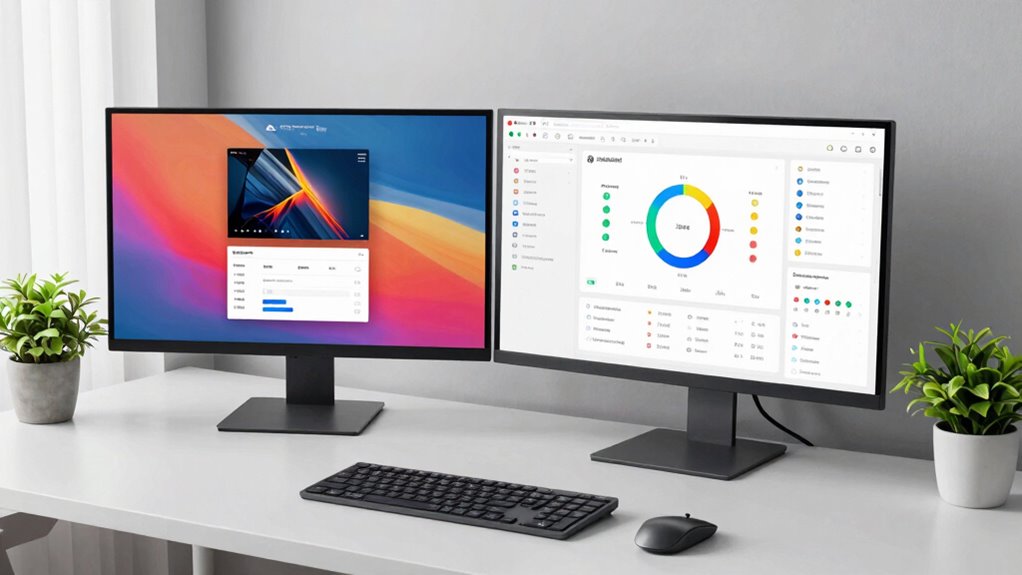
Adding a second monitor can markedly boost your productivity, but only if you use it wisely. To make the most of this setup, you need to focus on creating an ergonomic setup that minimizes strain and maximizes comfort. Position your monitor so that the top of the screen is roughly at eye level, about an arm’s length away. This reduces neck and eye strain, allowing you to work longer without discomfort. Use adjustable stands or mounts to fine-tune the height and angle, ensuring your posture stays natural throughout the day. An ergonomic setup isn’t just about comfort; it’s about maintaining focus and preventing fatigue, which directly impact your efficiency. Incorporating monitor placement principles can further enhance your comfort and productivity.
Position your monitor at eye level and an arm’s length away to reduce strain and boost comfort.
Once your monitor is positioned correctly, you should consider your workflow and how best to utilize your dual screens. A common productivity tip is to dedicate one screen to your primary task, such as writing or designing, while using the second for reference materials, emails, or chat windows. This prevents constant switching between tabs and applications, saving you time and mental energy. You might also use one monitor for communication tools like Slack or Teams, keeping your main workspace uncluttered and focused. The goal is to create a seamless environment where information flows effortlessly between screens, reducing interruptions and keeping your attention anchored on your core tasks. Proper workspace organization can further streamline your workflow and reduce distractions.
To further optimize your setup, explore shortcuts and software that enhance multi-window management. Many operating systems now include features like Snap Assist or virtual desktops that help you organize your workspace efficiently. Learning these productivity tips can make a significant difference, especially when juggling multiple applications. For example, snapping a window to a side of the screen allows you to view two documents simultaneously, boosting your multitasking ability. Keep your desktop tidy by organizing files and icons in a way that complements your workflow, so you’re not wasting time searching for things. Additionally, understanding ergonomic principles can help you customize your workspace to better suit your needs and reduce long-term strain. Regularly adjusting your setup to accommodate changes in your workflow or posture can also prevent discomfort over time. Incorporating biodiversity and sustainable practices in your workspace setup, such as choosing eco-friendly equipment, can contribute to a healthier environment. Being mindful of workspace ergonomics ensures that your setup adapts to your evolving needs and promotes well-being.
ergonomic adjustable monitor stand
As an affiliate, we earn on qualifying purchases.
As an affiliate, we earn on qualifying purchases.
Frequently Asked Questions
How Do I Calibrate Color Accuracy Between Two Monitors?
To calibrate color accuracy between two monitors, start with a color calibration tool or software designed for monitor consistency. Follow the prompts to adjust brightness, contrast, and color temperature, ensuring both displays match. Use a calibration device for precise results, and recheck periodically. This process helps maintain accurate color, making your monitors consistent for work or creative projects. Regular calibration keeps your displays aligned over time.
What Are the Best Ergonomic Setups for Dual Monitors?
For an ergonomic dual monitor setup, position your monitors on an ergonomic desk with monitor placement that keeps screens at eye level, about an arm’s length away. Place the primary monitor directly in front of you, with the second slightly to the side. Keep your neck straight and shoulders relaxed, using adjustable stands if needed. Make certain your keyboard and mouse are positioned comfortably to prevent strain during long hours.
Can I Use Different Operating Systems on Each Monitor?
Imagine your workspace as a vibrant crossroads, where different paths meet seamlessly. Yes, you can use different operating systems on each monitor, thanks to cross-platform compatibility. Make sure your hardware requirements support this setup—like multi-boot configurations or virtual machines. By doing so, you enjoy a fluid experience, switching effortlessly between systems, maximizing productivity and flexibility without the hassle of constant reboots or complex configurations.
How Do I Troubleshoot Display Flickering Issues?
To troubleshoot display flickering, first check your screen resolution settings; setting it too high can cause issues. Next, guarantee your cable connections are secure and undamaged, as loose or faulty cables often lead to flickering. Try switching cables or ports to identify if the problem persists. Updating your graphics driver can also help resolve flickering caused by software conflicts. If issues continue, test with another monitor to rule out hardware defects.
What Security Measures Should I Consider With Multiple Monitors?
You should prioritize privacy concerns by setting up secure passwords and enabling screen locks when you’re away. Use cable management to keep wires organized, reducing tripping hazards and preventing unauthorized access. Consider adjusting monitor privacy settings, like screen dimming or privacy filters, for sensitive work. Regularly update your system and security software to protect against vulnerabilities. These steps help safeguard your data while maintaining a clean, efficient workspace with multiple monitors.
dual monitor mount with height adjustment
As an affiliate, we earn on qualifying purchases.
As an affiliate, we earn on qualifying purchases.
Conclusion
Think of your second monitor as a trusty sidekick, ready to expand your horizon and lighten your load. When used wisely, it’s like having a secret passageway—allowing you to glide smoothly between tasks, keeping your main workspace clutter-free. Embrace this powerful duo, and your productivity will soar like an eagle taking flight. With your second monitor as your loyal ally, you’re equipped to conquer your day with clarity and confidence.
As an affiliate, we earn on qualifying purchases.
multi-window management software
As an affiliate, we earn on qualifying purchases.
As an affiliate, we earn on qualifying purchases.