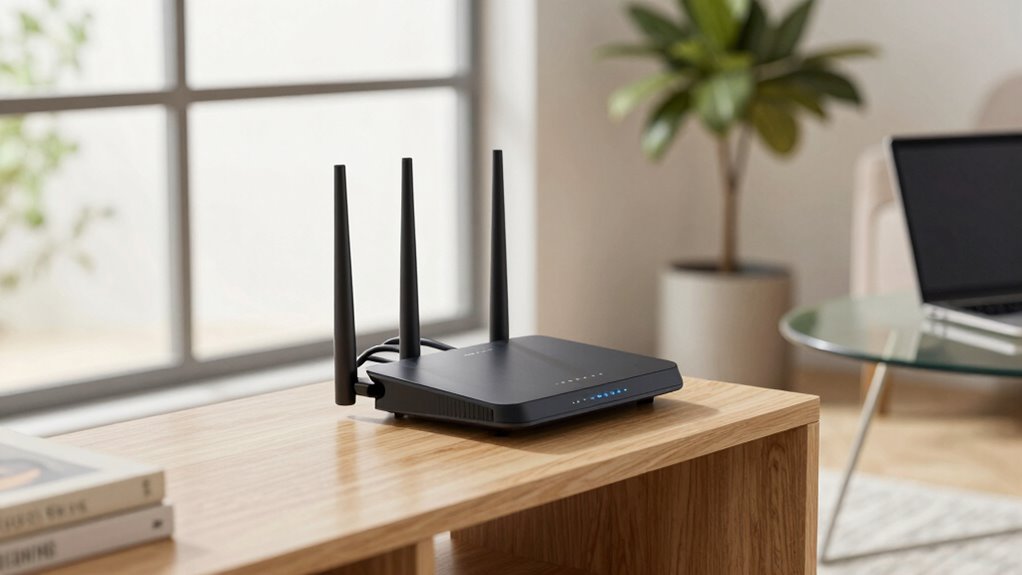

To get the fastest free speed boost, place your router in a central spot away from thick walls, metal objects, and electronics that cause interference. Elevate it on a shelf or wall mount for better coverage, and keep antennas vertical or adjusted to focus signals where needed. Test different spots and fine-tune your setup to find what works best. Keep exploring these tips for more simple ways to boost your Wi-Fi speed effortlessly.
Key Takeaways
- Place your router near the home’s center to ensure even coverage and minimize dead zones.
- Elevate the router on a shelf or wall mount to improve signal range and reliability.
- Keep the router away from thick walls, metal objects, and electronic interference sources like microwaves.
- Adjust antenna angles vertically for broader coverage or focus signals on specific areas.
- Test and fine-tune router position regularly using signal testing tools for optimal speed and performance.

NOTMBESTM Universal Wall Mount Holder for Google WiFi Fit for TP-Link Deco/Eero/Nest WiFi System Compatible with Small Speaker Mount Shelf Bracket for Echo Devices/Homepod mini/Sonos
Universal Wall Mount Shelf: It is fit for most smart speaker/ mesh wifi system/ Security Camera, Like google…
As an affiliate, we earn on qualifying purchases.
As an affiliate, we earn on qualifying purchases.
Why Slow Wi-Fi Happens and How Placement Can Fix It
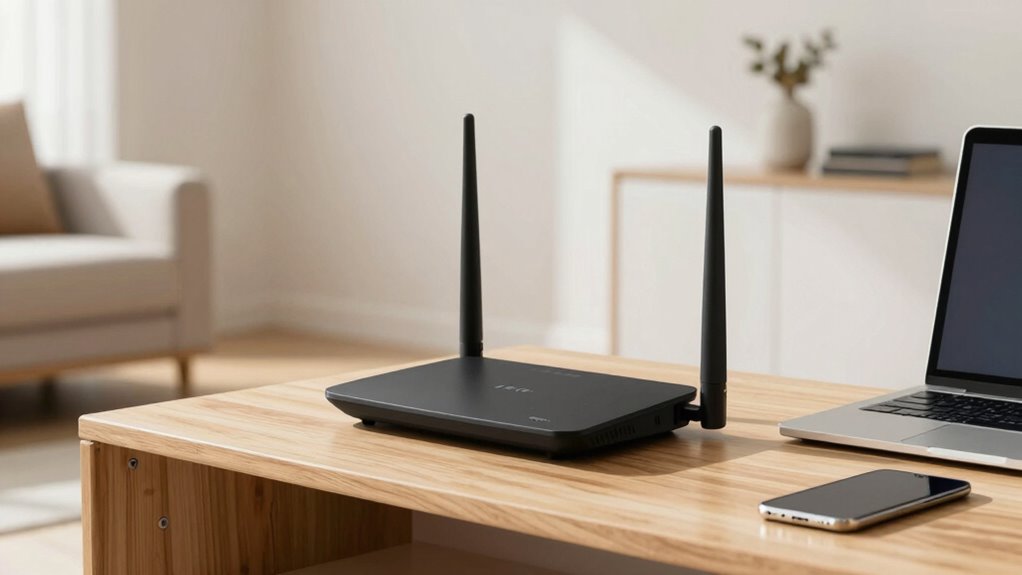
Slow Wi-Fi often results from poor router placement, which causes signals to weaken or drop before reaching your devices. When your router sits in a corner or behind furniture, it faces obstacles that block or absorb signals, leading to slower speeds. Network congestion also plays a role, especially if many devices connect simultaneously. Placing your router in a central, open spot helps reduce congestion and improves coverage. Additionally, keeping your firmware updated ensures your router runs efficiently and can handle multiple connections better. Outdated firmware can cause connectivity issues, making your Wi-Fi feel sluggish. By choosing the right placement and maintaining your router with updates, you can markedly boost your Wi-Fi speed and reliability without spending extra money. Proper router placement is fundamental to achieving optimal performance and avoiding common connectivity problems.

traderplus 3-Pack 10FT RP-SMA Male to Female Extension Cable WiFi Router Antenna Extender
Allows you to relocate your antenna to a optimal position to maximize the wireless performance.
As an affiliate, we earn on qualifying purchases.
As an affiliate, we earn on qualifying purchases.
Find the Best Central Spot for Your Router
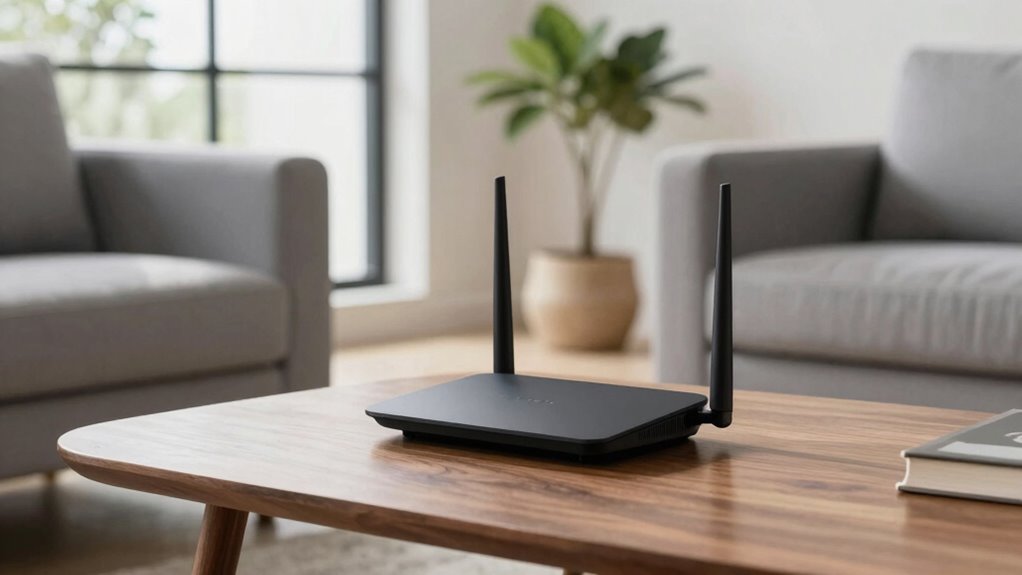
Choosing the right spot for your router can substantially improve your Wi-Fi performance. To maximize coverage, place it near the center of your home, ensuring even signal distribution. A central location helps avoid dead zones and reduces the need for multiple signal boosters. If you have a mesh network, position the main router centrally to optimize its connections with satellite nodes. Avoid placing your router near thick walls or metal objects that can block signals. Keep it elevated, like on a shelf, for better range. Also, consider the placement of devices that extend your Wi-Fi, such as signal boosters, to ensure they complement your router’s central position. Proper router placement can lead to faster speeds and more reliable connections throughout your space.

EMF Meter 5G RF Detector – Electric, Magnetic & Radio Frequency Field Tester up to 10GHz, Multi-Sensor EMF Detector for Power Lines, WiFi/Cell Phones, Smart Meters – LCD Display Sound & LED Alerts
Triple EMF Measurement for Daily Use This EMF meter measures Electric Field (EF), Magnetic Field (MF), and RF…
As an affiliate, we earn on qualifying purchases.
As an affiliate, we earn on qualifying purchases.
Keep Your Router Clear of Interference and Obstacles
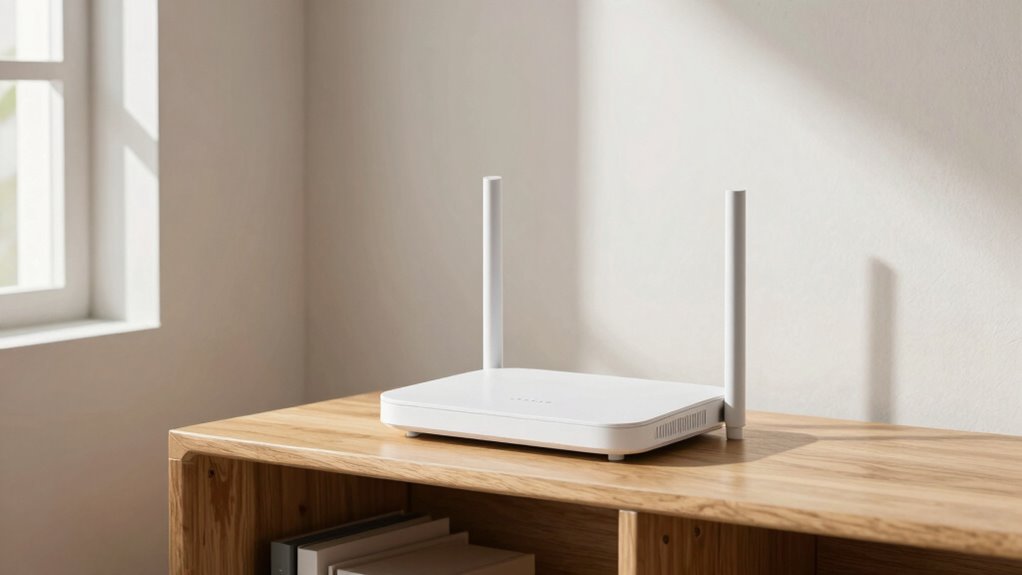
To get the best signal, keep your router away from thick walls, metal objects, and other physical barriers. Avoid placing it near devices that emit electronic interference, like microwaves and cordless phones. Opt for open spaces where obstacles are minimal to guarantee a stronger, more reliable connection. Additionally, placing your router at a higher elevation can help improve coverage throughout your space.
Minimize Physical Barriers
Physical barriers and interference can substantially weaken your Wi-Fi signal, so it’s essential to keep your router in a clear, open space. Obstacles like walls, furniture, and appliances can block or reflect signals, reducing your signal strength. To maximize coverage, place your router away from these physical barriers. Keep it elevated and unobstructed for better signal distribution. Additionally, avoid placing it near metal objects or thick walls that can hinder the signal. Consider the layout of your home and position the router in a central, open area. This simple step ensures your Wi-Fi remains strong and reliable, giving you faster speeds and fewer dead zones. Ensuring your router is free from interference and obstacles is crucial for optimal performance.
Avoid Electronic Interference
Electronic devices and appliances can create interference that weakens your Wi-Fi signal, so it’s important to keep your router away from sources like cordless phones, microwave ovens, and baby monitors. These devices emit electromagnetic interference that disrupts your router’s signals, especially on certain frequency bands like 2.4 GHz and 5 GHz. To optimize performance, position your router in a central location away from these potential sources of interference. Avoid placing it near large metal objects or thick walls that can reflect or absorb signals, further degrading your connection. By minimizing electromagnetic interference, you guarantee your Wi-Fi operates at its fastest, most reliable speed. Additionally, considering inclusive casting and diverse device compatibility can help ensure your network supports all users and devices effectively. Keeping your router free of interference is a simple yet effective step to boost your internet performance.
Choose Open Spaces
Choosing an open space for your router guarantees a strong, unobstructed signal throughout your home. Placing it in a cluttered or enclosed area can weaken signal strength and create dead zones. Keep your router away from thick walls, metal objects, and appliances that emit electronic interference. Positioning it high on a shelf or mounted on a wall helps maximize coverage. Remember to contemplate user locations—place the router where most devices connect for optimal performance. Avoid placing it behind furniture or inside cabinets, as these obstacles block signals. An open space ensures fewer obstacles and interference, providing reliable internet access across all rooms. By choosing the right spot, you improve signal strength and user experience, making your Wi-Fi faster and more dependable. Additionally, considering digital concepts like signal propagation can help you understand how to optimize placement for better coverage.

TP-Link Deco X55 AX3000 WiFi 6 Mesh System – Covers up to 6500 Sq.Ft, Replaces Wireless Router and Extender, 3 Gigabit Ports per Unit, Supports Ethernet Backhaul, Deco X55(3-Pack)
Wi-Fi 6 Mesh Wi-Fi – Next-gen Wi-Fi 6 AX3000 whole home mesh system to eliminate weak Wi-Fi for…
As an affiliate, we earn on qualifying purchases.
As an affiliate, we earn on qualifying purchases.
Elevate Your Router for Better Signal Distribution
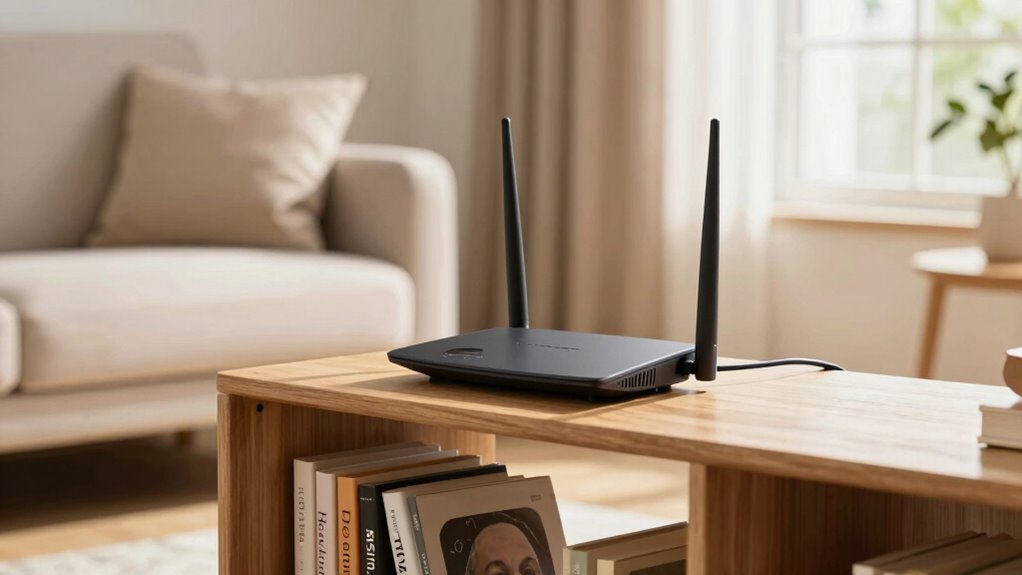
Raising your router can substantially improve your Wi-Fi coverage. Make sure to place it at a central location and keep it off the floor to avoid obstructions. Elevating your router helps distribute the signal more evenly throughout your space.
Choose Central Location
Placing your router in a central location guarantees that its signal reaches all areas of your home evenly. This improves overall signal strength and helps you avoid dead zones. To maximize effectiveness, choose a spot that’s free of clutter and away from large metal objects. Elevate your router on a shelf or mount it high for better distribution and less interference with router aesthetics in mind. Keep it away from appliances or thick walls that could block signals. Consider these tips:
- Position it mid-home for balanced coverage
- Keep it off the floor for better signal strength
- Avoid placing it near thick walls or metal furniture
- Use a high shelf or mount for elevation
- Ensure it’s in a well-ventilated, unobstructed spot
- Proper placement can significantly enhance your Wi-Fi performance and reduce interference.
This setup will give you faster speeds and a stronger connection.
Avoid Obstructions and Interference
Elevating your router is essential because it helps minimize obstructions that can weaken your Wi-Fi signal. Walls, furniture, and appliances can block or interfere with your connection, especially if you’re using a dual band router that operates on both 2.4GHz and 5GHz frequencies. By placing your router higher and clear of physical barriers, you reduce interference and improve signal distribution. This is particularly important if you have a mesh network setup, as a clear line of sight ensures seamless coverage across your space. Keep your router away from thick walls, metal objects, and electronic devices that emit interference. Elevation helps your Wi-Fi reach more devices reliably, giving you faster speeds and a more stable connection throughout your home. Additionally, understanding media literacy can help you recognize and troubleshoot potential sources of interference more effectively.
Elevate Router Off Floor
To improve your Wi-Fi coverage, it’s important to keep your router off the floor. Elevating your router enhances signal distribution and reduces interference. When placed higher, your router’s signal can travel more freely, reaching all corners of your space. Consider these tips for ideal router elevation:
- Place it on a high shelf or wall mount
- Use a sturdy stand or elevated platform
- Keep it away from large metal objects
- Avoid placing it near microwaves or cordless phones
- Position it in an open area for maximum signal enhancement
- Ensure proper placement to optimize signal quality and overall performance
Position Away From Electronic Devices and Thick Walls
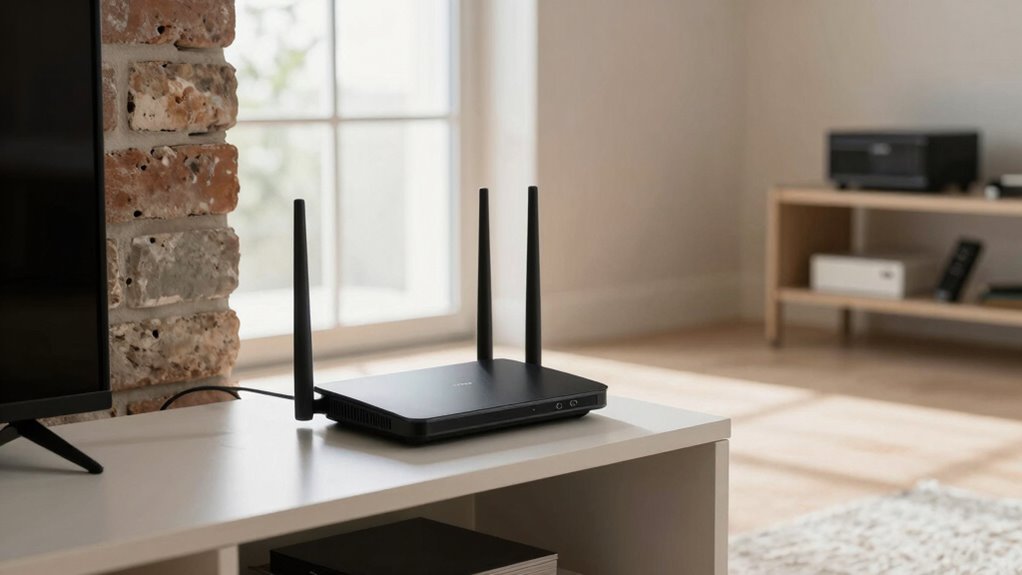
Electronic devices like cordless phones, microwave ovens, and Bluetooth speakers can interfere with your Wi-Fi signal, so keep your router away from them. These electronic devices emit signals that disrupt your Wi-Fi, causing slow speeds and dropped connections. Thick walls, especially those made of brick or concrete, also weaken your signal by blocking or absorbing the Wi-Fi waves. Position your router in an open area, away from electronic devices and thick walls, to maximize coverage. Avoid placing it in closets, behind furniture, or near metal objects, as these can further hinder performance. Additionally, understanding radio frequency interference helps you better optimize your router placement for improved performance. By keeping your router clear of these obstacles, you improve signal strength and stability, ensuring faster, more reliable Wi-Fi throughout your space.
Adjust Your Router’s Antennas for Maximum Coverage
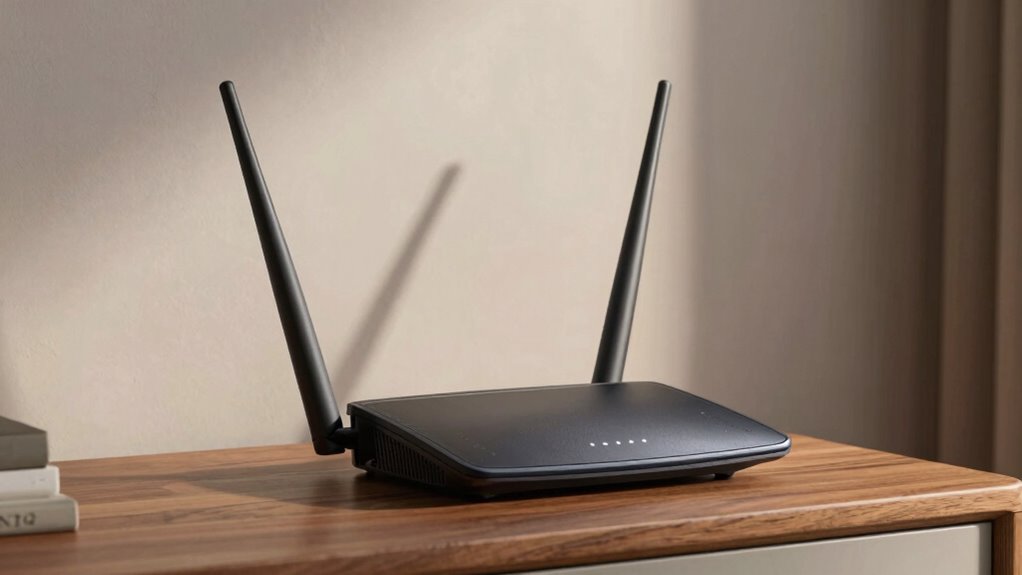
Adjusting your router’s antennas can greatly improve your Wi-Fi coverage. Proper antenna orientation influences signal strength and helps eliminate dead zones. Experiment with positioning by pointing antennas vertically for broader coverage or angling them for focused areas. Consider rotating antennas to find the ideal signal strength in different parts of your home. Keep in mind that some routers have adjustable antennas, while others are fixed, so adjust accordingly. Here are tips to maximize coverage:
- Point antennas vertically for wider coverage
- Angle antennas for specific room focus
- Use multiple antennas for better signal distribution
- Keep antennas perpendicular if your router is near the floor
- Test different orientations to find the best signal strength
Making small adjustments can notably boost your Wi-Fi performance.
Test and Fine-Tune Your Router Placement for Faster Wi-Fi
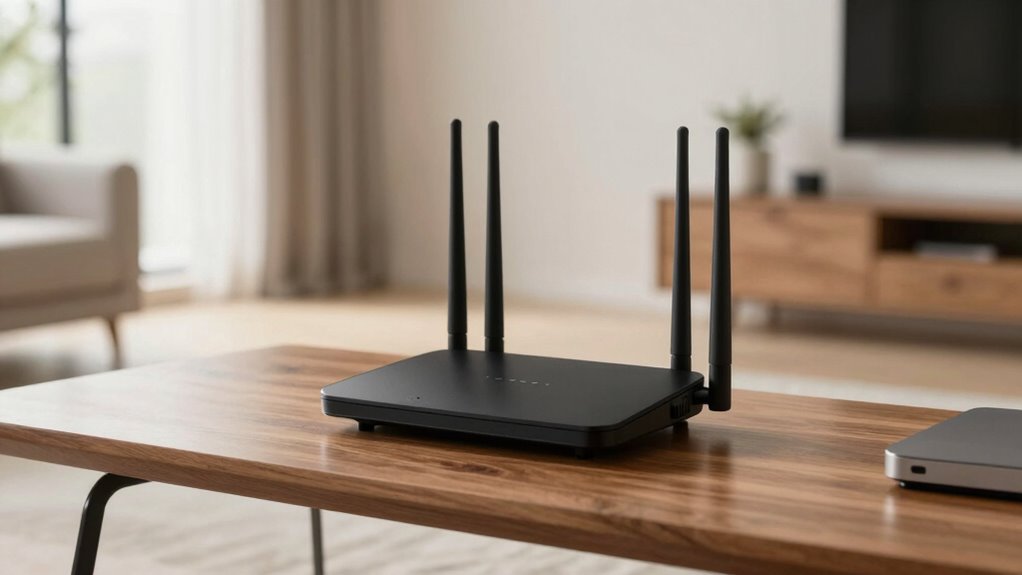
Testing and fine-tuning your router’s placement is essential for optimizing your Wi-Fi speed. Begin with a thorough router analysis by moving your device to different locations, observing how each spot affects signal strength. Use signal testing tools or your device’s built-in Wi-Fi analyzer to measure signal quality and speed at various points around your home. Look for areas with weak or inconsistent signals and adjust accordingly. Elevate your router if needed, avoiding obstructions like thick walls or metal furniture. Repeat signal testing after each adjustment to identify the best placement. By systematically analyzing your setup and testing signals, you’ll maximize coverage and speed, ensuring a faster, more reliable Wi-Fi connection throughout your space.
Frequently Asked Questions
How Often Should I Reposition My Router for Optimal Speed?
You should reposition your router whenever you notice signal interference or a drop in speed, typically every few months or if you move to a new home or room. Regularly checking for ideal positioning helps maintain strong coverage. Keep it elevated and away from electronic devices that cause interference. Adjusting the router’s location periodically ensures you’re maximizing your Wi-Fi signal, providing the fastest free speed boost and consistent internet connection.
What Are Common Mistakes to Avoid When Placing a Router?
Imagine placing your router in a corner behind furniture, which causes interference and weak signals. You should avoid common mistakes like this, especially poor placement height—keep it elevated for better coverage. Also, steer clear of router interference from thick walls or other electronics. Position your router in a central, open spot, ideally higher up, to maximize speed and minimize dead zones.
Can Router Placement Improve Wi-Fi Performance on Multiple Devices Simultaneously?
Yes, proper router placement can greatly improve Wi-Fi performance on multiple devices. By optimizing your router’s position, you reduce interference and enhance signal strength, allowing all devices to connect more reliably. Keep the router elevated and central to your space, away from thick walls and electronic interference. This signal optimization ensures faster speeds, fewer dropped connections, and better overall performance across your devices.
Does Router Brand or Model Affect Placement Effectiveness?
Imagine your Wi-Fi signal as a shining beacon; the router brand and model compatibility do matter. Some brands, like ASUS or Netgear, often have better antennas and technology that transmit signals more effectively. Choosing a well-designed model guarantees your placement maximizes coverage and speed. So, yes, your router’s brand and model influence how well placement works, making your internet faster and more reliable across all your devices.
How Do I Know if My Router’s Firmware Needs Updating for Better Speed?
You can check if your router’s firmware needs updating by logging into its admin panel, usually through a web browser. Look for a firmware update or system update section. Regular firmware updates improve speed, add security patches, and fix bugs. If an update is available, follow the instructions to install it. Keeping your firmware current guarantees peak performance and security, giving you the fastest possible speeds.
Conclusion
By placing your router wisely, you’re fundamentally tuning a musical instrument to hit the perfect note. Think of your Wi-Fi as a lighthouse guiding signals through the fog—elevate, clear, and position it away from interference. With a few simple tweaks, you’ll turn your home into a smooth-flowing network highway, speeding up your internet without spending a dime. Get ready to surf faster and smoother, as your Wi-Fi finally sings in perfect harmony.