
To reduce streaming buffering without upgrading your internet, start by freeing up bandwidth. Disconnect or pause devices not in use, and prioritize streaming traffic with your router’s QoS settings. Keep your devices updated and clear cache to improve performance. Use wired Ethernet connections or reposition your router for a stronger signal. Lower streaming quality, restart devices, and keep firmware updated to prevent glitches. These simple steps can make a big difference—discover more ways to improve your streaming experience below.

Get the little things that make your day delivered free — and shop member deals
- Fast, free delivery on millions of items
- Access to Prime Big Deal Days deals on October 6–7
- Prime Video, Amazon Music and more included
Key Takeaways
- Pause other devices or applications using bandwidth to free up resources for streaming.
- Lower the streaming quality settings to reduce data load and buffering.
- Reposition your Wi-Fi router centrally to improve signal strength and stability.
- Connect streaming devices directly to the router via Ethernet for a more stable connection.
- Restart your router and streaming devices regularly to clear glitches and refresh connections.
Ever wonder why your favorite streaming shows keep buffering? It can be frustrating, especially when you’re eager to binge your favorite series. Luckily, you don’t always need to upgrade your internet to improve your streaming experience. Instead, you can focus on bandwidth management and device optimization to reduce buffering and enjoy smoother playback.
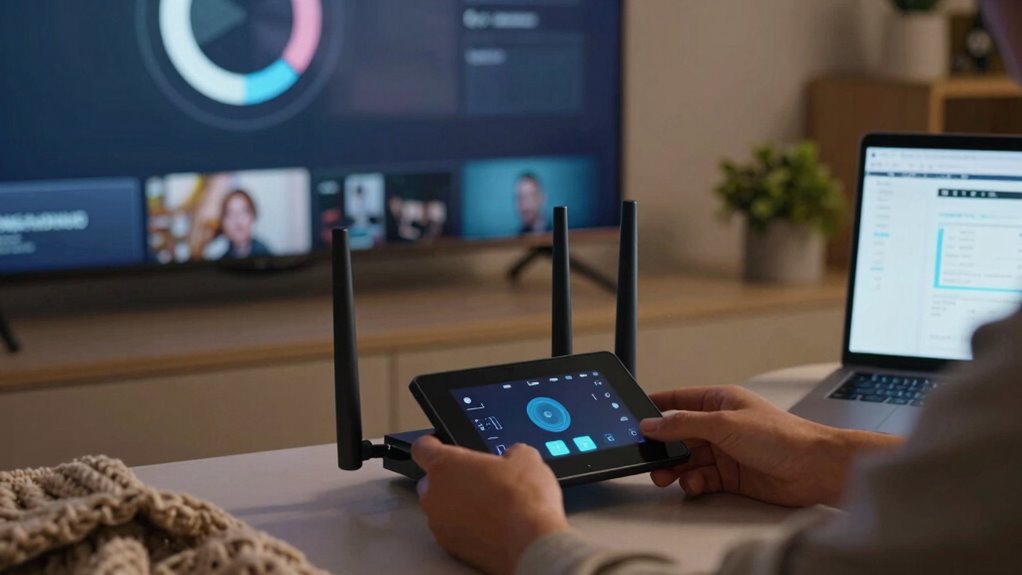
Start by managing your bandwidth wisely. Multiple devices connected to your Wi-Fi can eat up the available bandwidth, causing your streaming to lag. Check which devices are actively using the internet—smartphones, tablets, laptops, or smart home devices—and pause or disconnect those that aren’t essential. Prioritizing your streaming device ensures it gets the full bandwidth it needs. Many routers have Quality of Service (QoS) settings that let you assign priority to certain devices or types of traffic, like video streaming. Using these features helps ensure your stream gets the necessary resources, reducing buffering.
Prioritize your streaming device with QoS settings to reduce buffering and ensure smooth playback.
Device optimization plays a crucial role too. Ensure your streaming device is updated with the latest software, as updates often include performance improvements. Clear cache and temporary files that might slow down your device’s ability to process streams. Additionally, close any background applications that aren’t necessary, as they can consume bandwidth or system resources, causing your stream to stutter. If your device supports it, reduce the streaming quality setting; lowering resolution from 4K to 1080p or 720p can significantly decrease the data load, leading to less buffering during playback. Improving your Wi-Fi signal strength can also make a noticeable difference in streaming quality. You can also consider bandwidth management techniques to optimize your network performance further. Being aware of your network traffic helps you identify and minimize the impact of other high-bandwidth activities on your streaming.
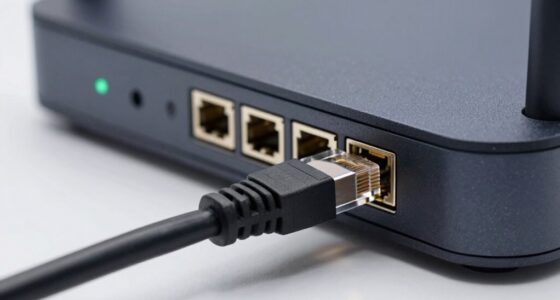
Another effective step is to connect your streaming device directly to your router via an Ethernet cable if possible. Wired connections are more stable and faster than Wi-Fi, especially if your wireless signal is weak or congested. If Ethernet isn’t an option, improve your Wi-Fi signal by repositioning your router to a central location, away from thick walls or electronic interference. Using a Wi-Fi extender or mesh network can also help distribute a stronger, more consistent signal throughout your home.
Finally, periodically restart your router and streaming devices. This simple step clears temporary glitches and refreshes your network connection. Ensuring your firmware is up to date on your router can also improve its performance and stability. With these steps—practical bandwidth management, device optimization, and improved connectivity—you can significantly reduce streaming buffering without needing to upgrade your internet plan. This way, you get a smoother, more enjoyable streaming experience every time.
Ethernet cable for streaming devices
As an affiliate, we earn on qualifying purchases.
As an affiliate, we earn on qualifying purchases.
Frequently Asked Questions
Can Clearing Cache Improve Streaming Performance?
Yes, cache clearing can improve streaming performance. When you clear your cache, you remove stored data that might be slowing down your device’s ability to load streaming content efficiently. This streamlines streaming optimization by reducing lag and buffering issues. Regular cache clearing helps your browser or app access fresh data, which can lead to smoother playback and a better streaming experience without needing to upgrade your internet plan.
Does Using an Ethernet Cable Reduce Buffering?
Using an Ethernet cable definitely reduces buffering by providing a more stable connection. Ethernet stability is generally better than Wi-Fi, minimizing interruptions during streaming. The cable advantages include faster data transfer and less interference, resulting in smoother playback. By connecting directly with an Ethernet cable, you eliminate Wi-Fi fluctuations, which helps keep your stream steady and reduces buffering issues, making your viewing experience much more reliable.
How Does Device Performance Affect Streaming Quality?
Your device performance can make or break your streaming experience. If your device isn’t optimized, it struggles to handle high-quality videos smoothly. Regular device optimization, like closing unnecessary apps and clearing cache, helps. Sometimes, hardware upgrades—like adding more RAM or upgrading your processor—are necessary to keep up with demanding content. Think of it as giving your device a tune-up; it’ll work better and reduce buffering, making streaming more enjoyable.
Are There Specific Apps That Buffer Less?
Yes, some buffering apps and streaming platforms are designed for better streaming efficiency, reducing buffering issues. Apps like Netflix and YouTube often optimize their content delivery, but you can also try apps like VLC or Kodi, which offer customizable buffering settings for smoother playback. Using these buffering apps can improve your streaming experience without needing to upgrade your internet, especially if your device handles the apps well.
Can Adjusting Streaming Quality Settings Help?
Imagine you’re in the 21st century, and adjusting streaming quality settings can definitely help. By lowering your video quality, you reduce the data needed, which improves buffering times. This is a simple way to optimize your bandwidth management using video compression techniques. You’ll experience fewer interruptions, especially if your internet isn’t super-fast. So, yes, tweaking quality settings is an effective, quick fix to keep your stream smooth without upgrading your internet plan.
Wi-Fi extender for better signal
As an affiliate, we earn on qualifying purchases.
As an affiliate, we earn on qualifying purchases.
Conclusion
By following these simple tips, you’ll turn your endless buffering nightmare into a streaming paradise! Imagine finally binge-watching your favorite shows without a single pause or glitch—your patience will thank you, and your friends will envy your flawless streaming skills. No longer will buffering steal your precious relaxation time; instead, you’ll be the hero of your own digital kingdom. Say goodbye to frustration and hello to seamless streaming—your entertainment revolution starts now!
QoS router settings for streaming
As an affiliate, we earn on qualifying purchases.
As an affiliate, we earn on qualifying purchases.
As an affiliate, we earn on qualifying purchases.
NFL season / tailgating Picks
team gear
As an affiliate, we earn on qualifying purchases.