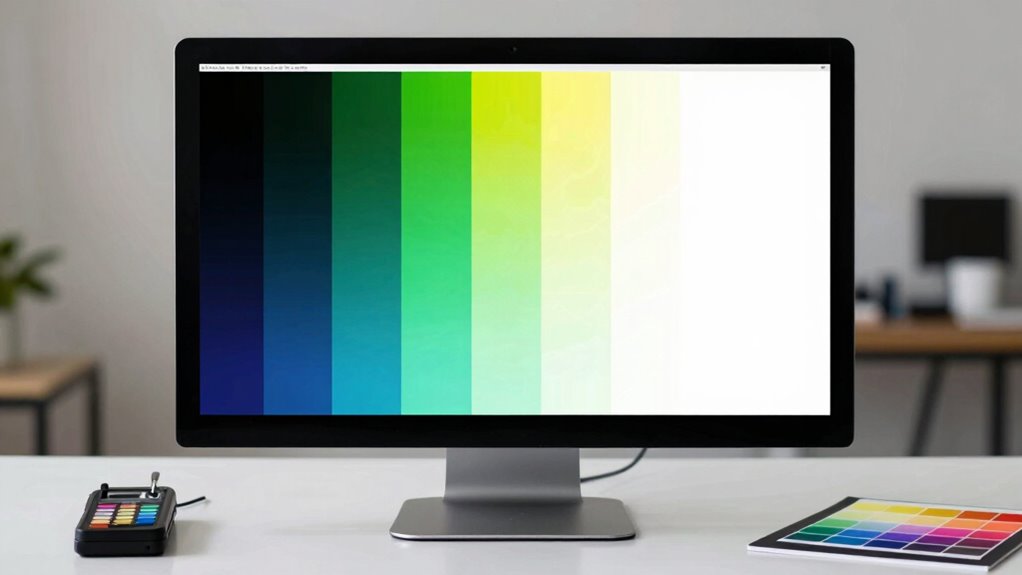

To calibrate your monitor, start by right-clicking on the desktop and selecting “Display settings.” Use the built-in calibration wizards for color and gamma adjustments, focusing on brightness (50-70%) and contrast (70-90%). Adjust the RGB sliders for accurate white balance and eliminate color casts. Finally, verify your calibration results with test patterns to guarantee color accuracy and contrast. There’s more to learn about optimizing your monitor for the best visual experience!

Get the little things that make your day delivered free with Prime
- Fast, free delivery on millions of items
- Prime Video, Amazon Music and more included
- Member-only deals all year
Key Takeaways
- Access display settings by right-clicking on the desktop and selecting “Display settings,” then find the “Advanced display settings” link.
- Adjust brightness levels to achieve bright whites without glare, ideally within a range of 50-70%.
- Set contrast to ensure deep blacks and clarity, with a recommended range of 70-90%.
- Fine-tune colors using RGB sliders in the monitor settings, aiming for a balanced display and pure whites.
- Verify calibration results using test patterns to check for color accuracy and consistency in brightness.
As an affiliate, we earn on qualifying purchases.
Understanding the Importance of Monitor Calibration
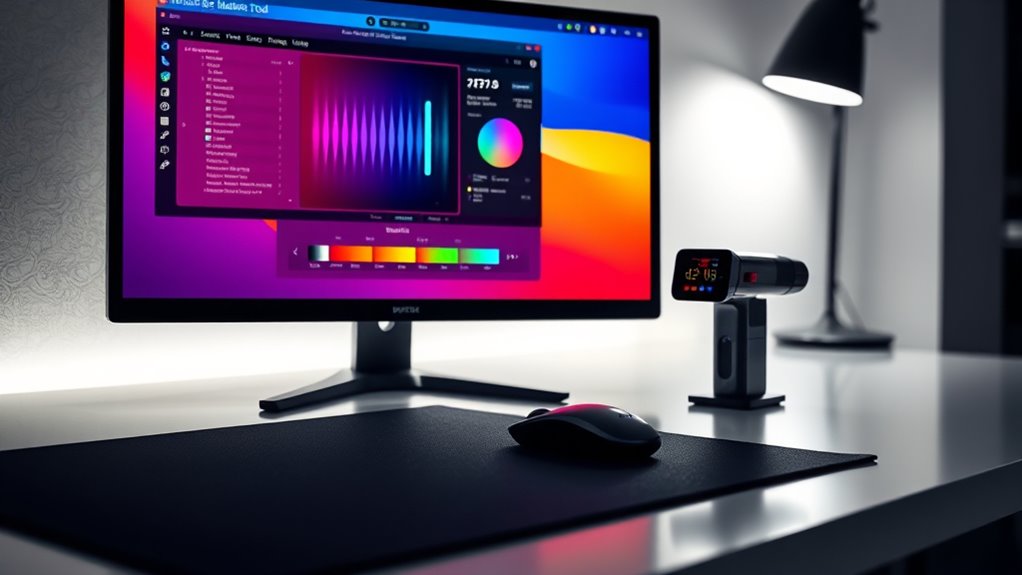
While you might think your monitor displays colors accurately, calibration is essential to confirm they match real-world standards. Without proper calibration, your color perception can be skewed, leading to misrepresentations in photos, videos, and graphics. This inconsistency not only affects your work but can also strain your eyes, diminishing your visual comfort during long sessions. Proper calibration confirms that the hues you see on-screen reflect true colors, allowing for better editing and design decisions. When your monitor’s colors are calibrated, you reduce the risk of color discrepancies when sharing your work with others. Ultimately, taking the time to calibrate your monitor enhances your overall experience, making everything you create look its best.
As an affiliate, we earn on qualifying purchases.
Where to Find Your Monitor’s Calibration Settings
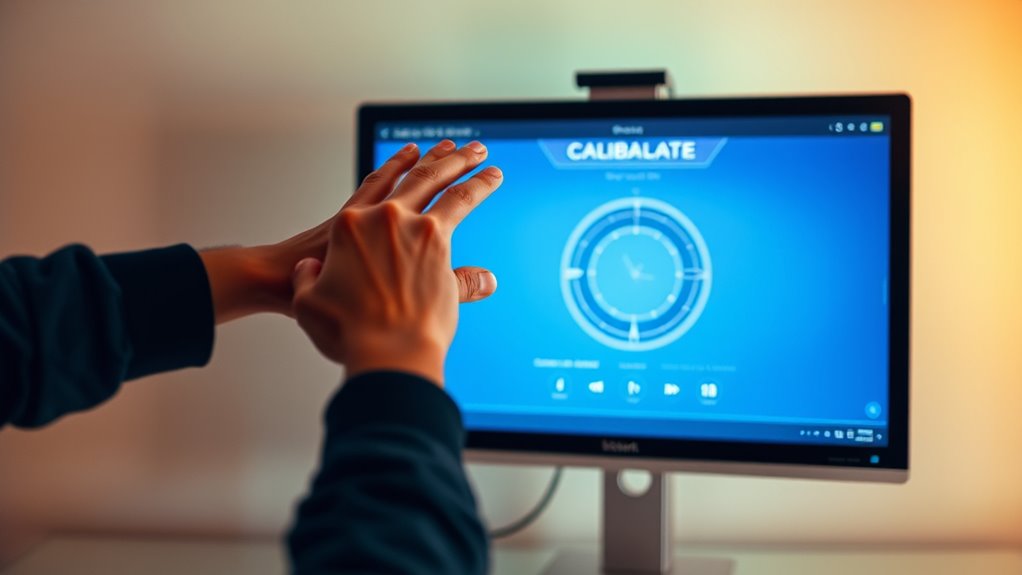
How can you easily access your monitor’s calibration settings? Start by right-clicking on your desktop and selecting “Display settings.” This will open a window where you can find various options for your display. Look for the “Advanced display settings” link, and click on it. Here, you’ll often find options for calibration tools. If your operating system includes built-in calibration wizards, they can guide you through adjusting color, gamma, and other settings. For external monitors, the buttons on the monitor itself usually provide access to its menu where you can find calibration options. Remember, the exact location of these settings can vary by brand and model, but they’re typically within the display settings menu.
monitor color calibration software
As an affiliate, we earn on qualifying purchases.
As an affiliate, we earn on qualifying purchases.
Adjusting Brightness and Contrast for Optimal Clarity
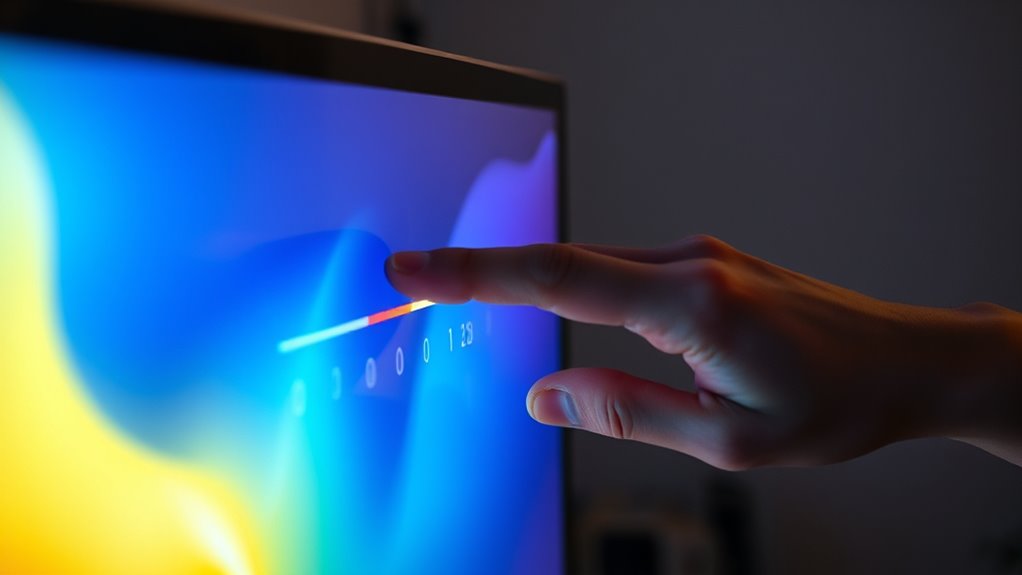
Getting the brightness and contrast just right can dramatically improve your viewing experience. Start by adjusting the brightness levels; aim for a setting where whites appear bright but not blinding. Next, tweak the contrast settings to guarantee blacks look deep and rich, enhancing overall clarity. Use the following table as a guide to find ideal settings:
| Setting | Recommended Range |
|---|---|
| Brightness Levels | 50-70% |
| Contrast Settings | 70-90% |
external monitor calibration device
As an affiliate, we earn on qualifying purchases.
As an affiliate, we earn on qualifying purchases.
Adjusting RGB and White Balance for Color Accuracy
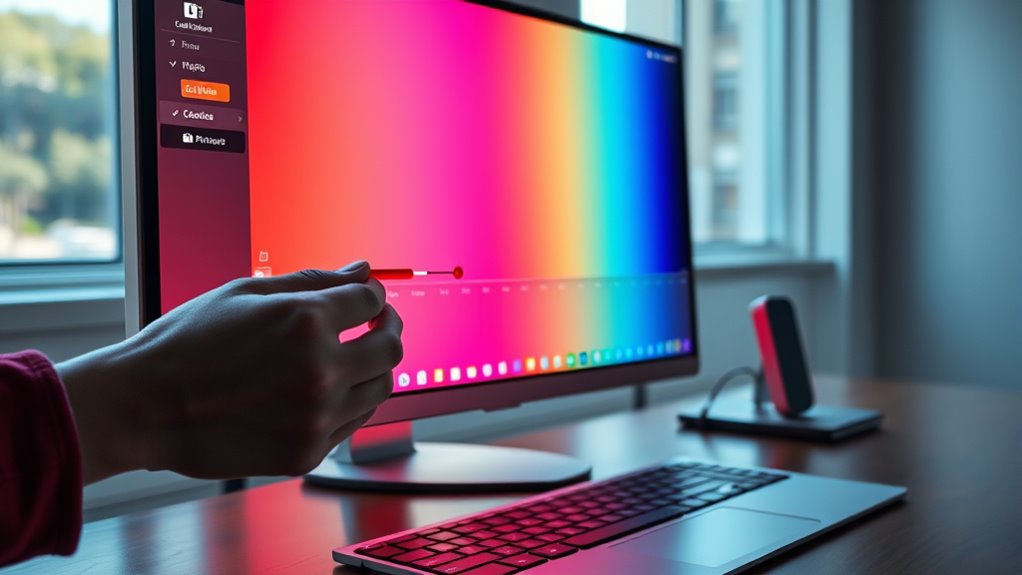
To achieve true color accuracy on your monitor, you’ll need to adjust the RGB settings and white balance. Start by accessing the RGB sliders in your monitor settings. These sliders allow you to fine-tune the red, green, and blue components to create a balanced display.
Here’s what to focus on:
- Set the white balance to guarantee whites appear pure and not tinted.
- Adjust the RGB sliders to eliminate color casts that may distort your images.
- Use a calibration tool or online test patterns to guide your adjustments for best results.
Verifying Your Monitor Calibration Results
After adjusting the RGB settings and white balance, it’s important to confirm that your monitor calibration has been successful. You can do this by using test patterns that highlight various colors, gradients, and contrast levels. Look for any discrepancies in color accuracy or brightness. Calibration tools, like hardware colorimeters or software solutions, can assist in this verification process. Run a series of tests to check how well your monitor displays different hues and grayscale values. If you notice any issues, consider fine-tuning your settings further. Regularly confirming your calibration guarantees that your monitor consistently delivers the color precision you need, whether for graphic design, photography, or gaming. Keep your monitor in top shape by checking it periodically!
Frequently Asked Questions
How Often Should I Recalibrate My Monitor?
You should recalibrate your monitor every few weeks to a month, especially if you’re working with color-critical tasks. Monitor frequency can impact how accurately your display represents colors. If you notice any significant changes in brightness or color accuracy, it’s time for a recalibration. Regular calibration guarantees you maintain the finest visual quality, so don’t overlook the necessity of keeping your monitor in check for peak performance.
Does Ambient Light Affect Monitor Calibration?
Yes, ambient light definitely affects monitor calibration. It influences how you perceive your monitor’s brightness and colors. If your room’s lighting changes throughout the day, your monitor settings may not look consistent. To guarantee accurate calibration, adjust your monitor brightness based on the ambient light in your workspace. Ideally, calibrate your monitor in the same lighting conditions where you’ll be using it for the best results.
Can I Use My Smartphone to Calibrate My Monitor?
Yes, you can use your smartphone to calibrate your monitor! There are several smartphone apps designed for this purpose, helping you adjust brightness, contrast, and color settings. While these apps can enhance calibration accuracy, they may not replace professional tools entirely. Still, they’re a great starting point if you’re looking for a quick and convenient solution. Just follow the app’s instructions carefully, and you’ll see an improvement in your display quality!
What Tools Do I Need for Professional Calibration?
To get the best results, “the right tools make all the difference.” For professional monitor calibration, you’ll need calibration tools like a colorimeter or spectrophotometer. These devices measure color accuracy and help guarantee your professional monitors display true colors. Software that accompanies these tools will guide you through the calibration process. You might also consider a reference monitor for comparison. Investing in quality tools pays off in the long run!
Is There a Difference Between Hardware and Software Calibration?
Yes, there’s a difference between hardware and software calibration. With hardware calibration, you’re adjusting settings directly on the monitor’s internal components, often resulting in more precise color accuracy. On the other hand, software calibration involves using programs to tweak display settings through your computer. While software calibration can improve image quality, hardware calibration typically offers better results, especially for professional work. Choose the method that suits your needs best!
Conclusion
Just like a painter fine-tunes their palette before creating a masterpiece, you’ve now crafted a clearer vision with your monitor. By calibrating its settings, you’ve turned a dull canvas into a vibrant landscape, where colors sing and details dance. As you step back and admire your work, remember that a well-calibrated monitor not only enhances your viewing experience but also guarantees you’re seeing the world in its true hues. Keep this masterpiece alive with regular checks!
NFL season / tailgating Picks
team gear
As an affiliate, we earn on qualifying purchases.