To reduce Wi-Fi dead zones without buying new gear, start by identifying sources of interference like microwaves and thick walls. Position your router centrally and elevate it, away from obstacles. You can also turn old devices, like routers or smartphones, into Wi-Fi extenders. Adjust your Wi-Fi settings for maximum speed, and consider DIY solutions like using aluminum foil for reflectors. There’s more effective advice ahead to boost your signal even further!
Key Takeaways
- Scan for and eliminate interference sources like microwaves and cordless phones to improve signal quality.
- Position your router in a central location, elevated to enhance coverage and reduce obstacles.
- Use old devices as Wi-Fi extenders by enabling their repeater mode or using apps for network sharing.
- Adjust your router’s channel settings to avoid crowded frequencies and optimize performance with a Wi-Fi analyzer.
- Rearrange furniture and remove physical barriers to enhance signal reach and minimize dead zones.

TP-Link AC1200 WiFi Extender, 2023 Engadget Best Budget Pick, 1.2Gbps Signal Booster for Home, Dual Band 5GHz/2.4GHz, Covers Up to 1500 Sq.ft and 30 Devices,Support Onemesh, One Ethernet Port (RE315)
𝐒𝐭𝐫𝐨𝐧𝐠𝐞𝐫 𝐖𝐢-𝐅𝐢 𝐢𝐧 𝐄𝐯𝐞𝐫𝐲 𝐂𝐨𝐫𝐧𝐞𝐫 – Enjoy extended coverage with strong performance powered by Adaptive Path Selection and…
As an affiliate, we earn on qualifying purchases.
As an affiliate, we earn on qualifying purchases.
Identify and Eliminate Sources of Wi-Fi Dead Zones

To effectively tackle Wi-Fi dead zones, you first need to identify what’s causing them in your space. Start by scanning for interference sources like microwaves, cordless phones, or Bluetooth devices that could disrupt your signal. Next, look for signal blockers such as thick walls, metal objects, or large appliances that may obstruct the Wi-Fi waves. Once you’ve spotted these culprits, you can take steps to minimize their impact. For example, try relocating devices that cause interference or rearranging furniture to reduce signal blockage. You might also consider shielding your router from obstructions. By addressing these issues, you’ll create a more reliable and expansive Wi-Fi coverage, helping eliminate those frustrating dead zones in your home.
TP-Link AC1200 WiFi Extender, 2023 Engadget Best Budget Pick, 1.2Gbps Signal Booster for Home, Dual Band 5GHz/2.4GHz, Covers Up to 1500 Sq.ft and 30 Devices,Support Onemesh, One Ethernet Port (RE315)
𝐒𝐭𝐫𝐨𝐧𝐠𝐞𝐫 𝐖𝐢-𝐅𝐢 𝐢𝐧 𝐄𝐯𝐞𝐫𝐲 𝐂𝐨𝐫𝐧𝐞𝐫 – Enjoy extended coverage with strong performance powered by Adaptive Path Selection and…
As an affiliate, we earn on qualifying purchases.
As an affiliate, we earn on qualifying purchases.
Where Should You Place Your Router for Better Wi-Fi?

The right placement of your router can make a considerable difference in your Wi-Fi coverage. Start by considering the room layout and verify your router’s in a central location. Aim for a higher router height to maximize signal distribution. Keep it away from walls and obstacles to reduce interference.
Here’s a quick reference for ideal router placement:
| Location | Height | Notes |
|---|---|---|
| Living Room | 5-7 feet | Central in the room |
| Home Office | 4-6 feet | Away from metal objects |
| Upstairs Hallway | 6-8 feet | Elevated for better reach |
Following these tips can greatly improve your Wi-Fi signal throughout your home.

WiFi Extender Signal Booster for Home: Internet Repeater Range Covers Up to 9995 Sq.ft and 45+ Devices
High Speed: WiFi Extender will expand the existing network to hard to reach areas, speed up to 300mbps,…
As an affiliate, we earn on qualifying purchases.
As an affiliate, we earn on qualifying purchases.
How to Turn Your Old Devices Into Wi-Fi Extenders?

If you’ve got old devices lying around, you can easily repurpose them as Wi-Fi extenders to enhance your network coverage. Start by checking if your old routers or smartphones support network sharing or can be configured as extenders. For routers, access the settings through a web browser, look for a “repeater” or “extender” mode, and follow the prompts to connect to your main network. If using a smartphone, there are apps available that can help turn it into a Wi-Fi repeater. These methods will boost your Wi-Fi signal, spreading it to areas with weak connectivity. By utilizing these old devices, you can save money and effectively improve your home’s wireless performance without investing in new gear. Additionally, understanding wireless technology can help you optimize your network setup for better coverage. Incorporating mesh networking principles can further streamline your setup and eliminate dead zones more effectively. Exploring wireless signal repeaters can also provide additional options for extending your Wi-Fi range with minimal effort.

WiFi Analyzer 2.4 Inch TFT Color Screen Network Signal Scanner 2.4G 5G Frequency Tester – Real-Time WiFi Signal Strength Meter with Battery Indicator for Network Optimizatio
[MAIN FUNCTION]: Easily scan and analyze 2.4G and 5G WiFi frequency points to help you switch to the…
As an affiliate, we earn on qualifying purchases.
As an affiliate, we earn on qualifying purchases.
Optimize Your Wi-Fi Settings for Maximum Speed and Stability
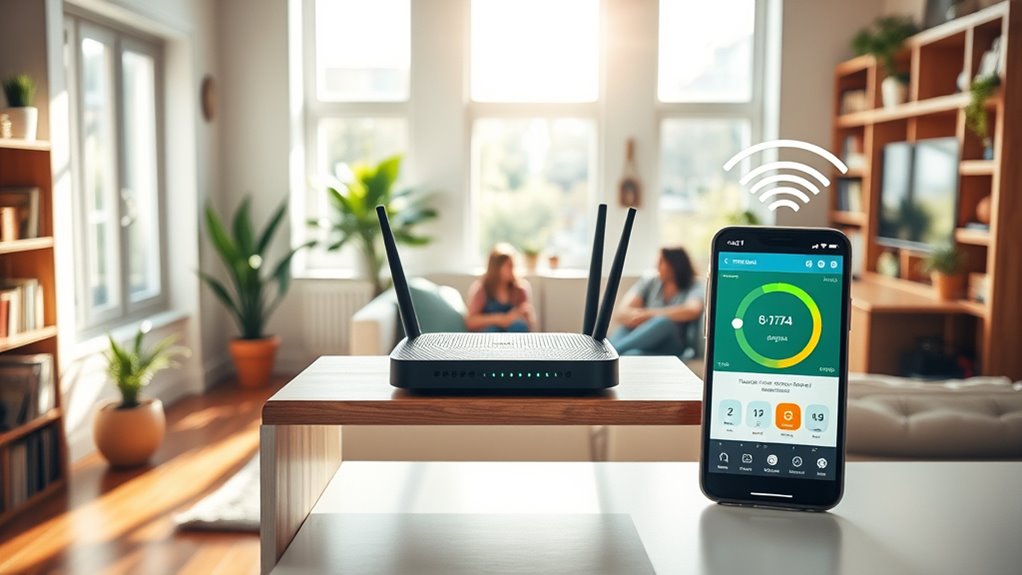
While you may have already enhanced your Wi-Fi coverage, optimizing your settings can take your network’s speed and stability to the next level. Start by checking your channel selection. Most routers default to the same channels, leading to interference. Use a Wi-Fi analyzer app to find the least crowded channel and switch to it in your router settings. Next, focus on bandwidth management. Prioritize devices that need the most speed, like gaming consoles or streaming devices, by adjusting Quality of Service (QoS) settings. This guarantees that high-demand activities get the necessary bandwidth, reducing lag for everyone else. By fine-tuning these settings, you’ll enjoy a faster and more reliable connection throughout your space.
DIY Tips for Boosting Wi-Fi Signal

To boost your Wi-Fi signal effectively, consider implementing a few simple DIY strategies that can make a significant difference. First, position your router in a central location, ideally elevated, to enhance signal reflection throughout your space. Avoid placing it near interference sources like microwaves, cordless phones, or thick walls that can block the signal. You can also use aluminum foil to create a DIY reflector behind your router, directing more signal towards areas that need it most. Additionally, rearranging furniture or removing obstacles can help improve the overall coverage. Finally, regularly check for any firmware updates for your router to guarantee it’s operating at peak performance. These small adjustments can lead to a noticeable boost in your Wi-Fi signal.
Frequently Asked Questions
How Do Walls and Furniture Affect Wi-Fi Signal Strength?
Walls and furniture greatly impact Wi-Fi signal strength through signal attenuation. When you place your router behind thick walls or large pieces of furniture, the signal weakens, leading to dead zones. To improve coverage, you should rearrange your furniture and avoid placing obstacles directly between your router and devices. By optimizing your furniture arrangement, you can enhance the Wi-Fi signal and enjoy a stronger, more reliable connection throughout your space.
Can Microwaves Interfere With Wi-Fi Signals?
Yes, microwaves can interfere with Wi-Fi signals. Both operate on similar microwave frequency ranges, typically around 2.4 GHz. When you use your microwave, it emits signals that can disrupt your Wi-Fi connection, leading to slower speeds or dropped connections. To minimize this interference, try keeping your microwave away from your router or using a less crowded frequency band, like 5 GHz, if your router supports it. Staying mindful of placement can help maintain your signal strength.
What Are Common Signs of a Wi-Fi Dead Zone?
You’ll know you’re in a Wi-Fi dead zone if your signal indicators show weak or no connectivity. Did you know that nearly 30% of users experience dead zones in their homes? If you’re struggling to load web pages or stream videos, that’s a clear sign. Try troubleshooting techniques like moving closer to the router or checking for physical obstructions. These steps can help identify and reduce the impact of those frustrating dead zones.
How Often Should I Reboot My Router?
You should reboot your router at least once a month for ideal router maintenance. Regularly rebooting helps refresh your connection and can improve signal enhancement. If you notice slow speeds or connectivity issues more often, consider rebooting weekly. This simple action can clear temporary glitches and enhance your overall Wi-Fi performance, ensuring you stay connected without constantly fighting dead zones. Just unplug it for about 30 seconds, then plug it back in!
Does the Number of Connected Devices Impact Wi-Fi Performance?
Yes, the number of connected devices definitely impacts Wi-Fi performance. Each device you add can strain your network, especially if they’re all streaming, gaming, or downloading simultaneously. This leads to network congestion, slowing down speeds for everyone. You might hit your router’s device limitations, which can further degrade performance. To optimize your connection, consider managing your devices or scheduling heavy usage for off-peak times when fewer devices are online.
Conclusion
By identifying and eliminating dead zones, you can transform your Wi-Fi experience from frustrating to seamless. Just as a well-placed router can light up dark corners of your home, turning old devices into extenders can bridge the gap between strong signals and weak spots. Optimizing your settings is like fine-tuning an instrument, ensuring every note of your internet connection plays harmoniously. With a few DIY tweaks, you’ll go from struggling to streaming effortlessly, all without spending a dime.